Import existing .md files as draft doc posts without manual copy-paste.
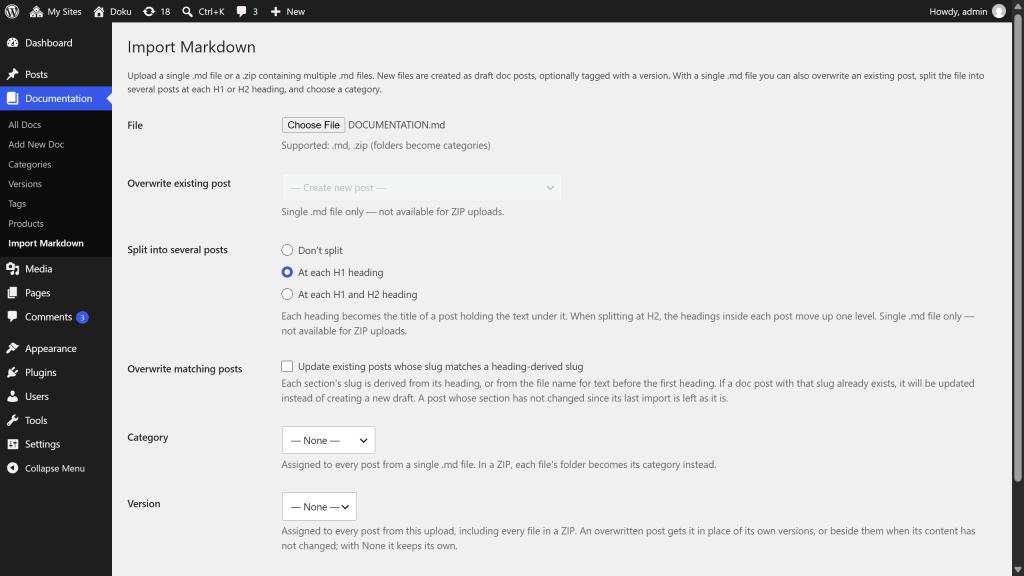
Go to Documentation > Import Markdown in the admin sidebar.
Markdown flavors supported
In one line: anything you can write in a GitHub README will import cleanly.
- Full CommonMark spec — paragraphs, ATX and setext headings, indented and fenced code blocks, blockquotes (single-level and nested), inline / reference / autolink links, inline and block images, emphasis with
*and_, inline code with variable-length backtick runs, hard line breaks, backslash-escaped punctuation, horizontal rules, ordered and unordered lists (with full indent-based nesting). YAML frontmatter is parsed before the body. - GFM extensions (GitHub Flavored Markdown spec) — pipe-delimited tables, strikethrough with
~~(and GitBook’s~single-tilde~variant), task lists with- [ ]/- [x], and the autolinks extension (bare URLs starting withhttps://orwww.and bare email addresses get linked automatically; trailing sentence punctuation is excluded from the URL). - GitHub-flavored extras (not part of the GFM spec, but rendered by GitHub.com) — alert callouts
> [!NOTE],> [!TIP],> [!IMPORTANT],> [!WARNING],> [!CAUTION]; footnotes[^label]with definitions; emoji shortcodes like:smile:or:rocket:(curated set of about 100 common names). - Doku additions — two extra alert variants
> [!DANGER]and> [!INFO]; automaticidanchors on every imported heading so deep links work without theme JS. - GitBook export format — Liquid-style
{% %}template tags and HTML constructs produced when you export a GitBook space as Markdown:{% hint %}callouts,{% code %}blocks (title, line numbers, wrap),{% tabs %}/{% tab %}tab sets (tabbed code when every tab is one code block, otherwise tabs holding any content),{% stepper %}/{% step %}step procedures,{% columns %}/{% column %}column layouts,{% embed url="…" %}external links,{% content-ref url="…" %}page links,{% updates %}/{% update %}changelog entries, expandable<details>/<summary>blocks,<table data-view="cards">card grids,<table data-view="parameters">API parameter tables,<img class="gitbook-drawing">inline diagrams, and$$…$$math formulas (rendered via KaTeX in the browser).{% file %}and{% include %}tags are consumed silently (no Doku equivalent). Unrecognized{% %}tags appear as literal text. GitBook inline constructs —<a class="button …">links, Font Awesome<i class="fa-*">icons — are normalized: buttons become plain links; Font Awesome<i class="fa-*">icons get the appropriate FA family class added on import (fa-brandsfor any name in FA’s free brand set — sourced from the vendoredicons.jsonmetadata, so all ~550 brand icons are covered;fa-solidotherwise) so the glyph actually renders. Doku loads Font Awesome CSS automatically on pages that contain FA classes.
Not supported (left as literal text)
These tokens pass through unchanged — they appear as plain text in the rendered post rather than as links or styled output. This is intentional, mostly because they only have meaning in a GitHub repo context:
- @-mentions like
@octocat— no built-in user directory to link to. - Issue and PR references like
#123,GH-123, orowner/repo#456— no associated repository. - Commit SHA references like
a1b2c3d— same reason. - Dangerous HTML —
<script>,<iframe>, and inline event handlers (onclick,onerror, etc.) are stripped on import bywp_kses_post. Safe inline tags (<sub>,<sup>,<kbd>,<mark>,<br>,<abbr>, etc.) and block-level HTML (a bare<div>,<section>, …) are preserved — block-level HTML becomes awp:htmlblock, inline HTML is rendered in place.
If you need any of the above to behave differently, tell us through Support.
Accepted file formats
| Format | Description |
|---|---|
.md | Single Markdown file. Choose its category in the form, and optionally split it into several posts |
.zip | Archive containing one or more .md files, in folders or not — each file’s folder becomes its category (see doc_category under Taxonomies) |
A ZIP may hold up to 500 Markdown files and 50 MB of Markdown in total, with no single file over 5 MB. An archive over either total is refused before anything is imported; split it into smaller archives, or raise the limits by defining DOKU_CORE_IMPORT_MAX_FILES or DOKU_CORE_IMPORT_MAX_BYTES (in bytes) in wp-config.php. A file over 5 MB is skipped and the rest are imported.
What gets converted
The importer handles CommonMark plus the GFM extensions (tables, strikethrough, task lists, callouts) and GitBook export tags.
Block-level
| Markdown | WordPress block |
|---|---|
ATX headings # H1 … ###### H6 | wp:heading (with auto id anchor slugified from heading text) |
Setext headings (text underlined with === or ---) | wp:heading (H1 / H2, with auto id anchor) |
Fenced code blocks (```lang or ~~~lang, 0–3 space indent) | doku/enhanced-code with language set |
```mermaid fenced block | doku/mermaid — a diagram, not a code block. Renders live, and the importer bakes it to an SVG in the pass after import |
| Indented code blocks (4-space or tab indent) | doku/enhanced-code (plain text) |
> [!NOTE], > [!TIP], > [!IMPORTANT], > [!WARNING], > [!CAUTION], > [!DANGER], > [!INFO] | doku/callout (GFM IMPORTANT maps to info, CAUTION maps to warning) |
{% hint style="info\|tip\|warning\|danger\|success" %} | doku/callout (success maps to tip; unknown styles fall back to info). The body is parsed normally, so a callout can hold several paragraphs, a list or a code block |
{% code title="…" overflow="wrap" lineNumbers="true" %} | doku/enhanced-code with title, wrap, and line-number attributes |
{% tabs %}/{% tab title="…" %} with fenced code inside each tab | doku/tabbed-code. The fence may be wrapped in {% code %}, whose overflow and lineNumbers carry over to that tab; its title does not, because the tab label shows the tab’s own title. If any tab holds anything besides a single code block, such as a sentence before the code, the whole set becomes doku/tabs instead, one tab per {% tab %} with its content parsed normally, so nothing in it is lost |
{% stepper %}/{% step %} | doku/step-procedure, one doku/step per step; each step’s inner content is parsed normally, so a step can hold headings, paragraphs, lists, callouts and code blocks |
{% columns %}/{% column width="N%" %} | wp:columns + wp:column (WordPress core column layout; width preserved) |
{% embed url="…" %} | wp:paragraph with the URL as a plain link (embeds require JS; link is the static fallback) |
{% content-ref url="…" %}label{% endcontent-ref %} | wp:paragraph with label as a link (or URL if label is empty/dot) |
{% updates %}/{% update date="…" tags="…" %} | wp:heading (H3, date + tags) followed by parsed inner blocks |
$$formula$$ or multi-line $$ … $$ | wp:html with <div class="math-block"> — rendered by KaTeX auto-render |
<details [open]><summary>title</summary>…</details> | core/details, WordPress’s Details block (collapsed or open by default). The summary may share a line with <details> or run over several lines, and keeps its text but not its formatting. The body is parsed normally, so it can hold several paragraphs, any other block and further <details> sections |
<table data-view="cards"> | doku/card-grid (title, description, and URL parsed from table cells) |
<table data-view="parameters"> | doku/api-param-table (Parameter, Type, Required, Default, Description from the five cells; an em dash in Default reads as empty) |
<img class="gitbook-drawing" src="…" alt="…"> | wp:image |
## Heading <a href="#id" id="id"></a> | wp:heading whose anchor is id, so existing links to #id keep working. The empty link itself is removed |
Unordered lists (-, *, +), nested by indent | wp:list |
Ordered lists (1., 2., …), nested by indent | wp:list (ordered) |
Task lists (- [ ], - [x]) | wp:list with is-style-task-list |
Blockquotes (>) | wp:quote |
Horizontal rules (---, ***, ___, or spaced - - -, * * *) | wp:separator |
Block-level images ( on its own line) | wp:image with optional caption |
Pipe-delimited tables (\| col \| col \|) | wp:table |
| Paragraphs | wp:paragraph |
Inline (within paragraphs, headings, list items, table cells)
| Markdown | Result |
|---|---|
**bold** / __bold__ | <strong> |
*italic* / _italic_ | <em> (underscore form respects word boundaries — snake_case is left alone) |
***bold italic*** | <strong><em> |
~~strikethrough~~ | <del> |
`code` (any length backtick run) | <code> |
[text](url), with optional "title" and balanced parens in URL | <a> |
Reference links [text][id], [text][], [id] (with [id]: url "title" defs) | <a> |
Autolinks <https://…> and <email@example.com> | <a> / mailto: |
Bare URLs (https://…, www.…) and bare emails (GFM extension) | <a> / mailto: (trailing sentence punctuation is excluded) |
Emoji shortcodes (:smile:, :rocket:, :check:, …) | Unicode emoji (curated set of ~100 common shortcodes; unknown names pass through literally) |
Inline images  | <img> |
Footnote references [^label] with [^label]: … definitions | numbered <sup> link; footnote list appended at end of post |
Backslash-escaped punctuation \*, \_, \[, etc. | literal character |
Hard line breaks (line ending with two spaces or a trailing \) | <br> |
Raw HTML in the source is sanitized via WordPress’s wp_kses_post and rendered. Safe inline tags (<kbd>, <sup>, <sub>, <mark>, <br>, <abbr>, <span>, <picture>, …) render in place; block-level HTML (<div>, <section>, <aside>, …) becomes a wp:html block. A GitBook <picture> with a dark-mode <source> follows the reader’s system setting, not the header’s light/dark toggle. Dangerous tags (<script>, <iframe>) and inline event handlers (onclick, …) are stripped.
Links between pages
Links from one imported file to another keep working on the site. That covers a Markdown link such as [Setup](guides/setup.md), a {% content-ref %} and a card’s link. The importer stores each link as written and remembers where every file sat in its upload. When a page is displayed, a relative link to a .md file, or to a folder (meaning that folder’s README.md), is worked out from the linking file’s folder and pointed at the matching page’s current address. As a result:
- Import order does not matter. A link to a page you have not imported yet starts working as soon as you import it.
- Links follow the page. Changing a page’s slug or category later does not break links to it.
- Duplicate imports stay separate. If you import the same ZIP twice, each copy links to its own pages. Between separate uploads, a published page wins over a draft, and otherwise the newest import wins.
A single .md upload has no folder, so its links are worked out as if it sat at the top level of a ZIP. If the file’s links assume it lived in a subfolder, import that folder as a ZIP instead.
A file split into several posts becomes several pages, and links follow the headings to them:
- Within the file. A link such as
[Configure](#configure)whose heading ended up on another page of the same file goes to that page. A link to a heading on the same page stays as it is. - From other files.
guide.md#installgoes to the page ofguide.mdholding the Install heading, and a plainguide.mdgoes to its first page. - Headings that became titles. A link to a heading that became a page’s title goes to the top of that page.
Under each imported page, the import results list any links that match no imported page yet, and, for a split file, any # links that match a heading on none of its pages. A link to a draft page only works for people who can see the draft; visitors see the link as written until the page is published. In the editor, links always show as written (guides/setup.md). A page cached by a caching plugin before its target was imported keeps the old link until that cache is cleared. Exported Markdown keeps the links as written, so an exported set of pages imports again with its links intact.
Frontmatter
YAML frontmatter is parsed if present:
---
title: Getting Started
slug: getting-started
description: A short summary used as the post excerpt.
tags:
  - tag: sdk
    primary: true
  - quickstart
---
Supported fields:
| Field | Mapped to | Notes |
|---|---|---|
title | Post title | Falls back to first H1, then a title derived from the filename (hyphens and underscores replaced with spaces, each word capitalized — e.g. getting-started.md → Getting Started). If title is set and the first H1 in the body matches it exactly, the heading is removed from the body to avoid a duplicate. |
slug | Post slug (post_name) | Falls back to sanitize_title( title ). |
description | Post excerpt (post_excerpt) | Surfaces as the meta description fallback in Yoast / Rank Math and as the snippet in search and card-grid layouts. |
tags | doc_tag taxonomy terms | Accepts a plain list of strings or a list of { tag: <name>, primary: true } mappings. The first entry marked primary: true is stored in the _doku_primary_tag post meta. Missing terms are auto-created. |
Overwrite an existing post
To update an existing doc instead of creating a new one, select it from the Overwrite existing post dropdown before uploading. The selected post’s content, title and slug will be replaced with the imported file’s, so the page’s address changes if the file’s title (or its slug front matter) differs from the post’s. It is rewritten even when the file has not changed, so this is also how to undo changes made to the page in WordPress — except for its images, unless you also uncheck Keep images already in the post (see Keep images already in the post).
Note: Overwrite applies to single
.mdfiles only — it is ignored for.zipuploads. It is also disabled when the file is split into several posts (slug-based matching is used instead).
Split into several posts
A long single .md file, such as a README or a guide, can become several pages instead of one. Under Split into several posts, choose:
- Don’t split — the whole file becomes one post (the default).
- At each H1 heading — one post per
# Heading. Each H1 becomes a post title, and the H2s and deeper headings under it stay as they are. Use this for a file stitched together from several pages, or a book-style file with one H1 per chapter. - At each H1 and H2 heading — one post per
## Heading, which suits the common shape of one H1 followed by many H2 sections. Each H2 becomes a post title, and the headings inside it move up one level (H3 becomes H2, H4 becomes H3, and so on), so each page’s outline starts at H2 under its title. Text between an H1 and the first H2 after it becomes a post titled with the H1, such as an overview; an H1 with nothing under it before the next H2 makes no post.
In both modes:
- Text before the first split heading becomes a post of its own, titled after the filename (
guide.md→ Guide). A section with nothing in it besides its heading is skipped. - Only the file’s own headings count. A
#line inside a fenced code block, such as a shell comment, is code, and a heading inside a callout ({% hint %}), a tab, a step, an expandable block (<details>), a list or a quote stays where it is. Headings underlined with===or---count like#and##. - Order is kept. New posts are numbered in file order (their Order in the page attributes panel), so they appear in the sidebar and in previous/next links in the order they had in the file.
- Links and footnotes keep working. Reference-link and footnote definitions work in every post, wherever they sit in the file; each post lists only the footnotes it cites. A link to a heading that ended up on another page, such as
[Configure](#configure), goes to that page — see Links between pages. Heading anchors are numbered across the whole file, so the second “Example” heading is#example-2whichever page it lands on, as it would be without splitting. - Frontmatter is ignored. It describes one page, so it is not applied to any of the posts.
Note: Not available for
.zipuploads. Choosing a split disables the Overwrite existing post dropdown.
Overwrite matching posts
When splitting, you can also check Overwrite matching posts. Each section’s slug is derived from its heading (via WordPress sanitize_title()), or from the file name for text before the first heading. If a doc post with that slug already exists, it is updated instead of creating a new draft, and it keeps its status and its place in the order.
A section that has not changed since it was last imported is left as it is: the results list it as unchanged, and its page gets no new revision and keeps its last-modified date. So re-importing a whole file after editing one chapter rewrites only that chapter. “Unchanged” compares the file with what it produced last time, not with the page, so a change you made to such a page in WordPress stays. To put a page back to what the file says, import the file again with Overwrite existing post set to that page, which always rewrites it.
Warning: This will overwrite existing posts without further confirmation, including a post from another file that happens to share a slug, such as Installation. Use with care.
Keep images already in the post
An imported image is a plain image block pointing at the address written in the file. Once you swap one for a Media Library image in the editor (which brings responsive sizes), or set its size, link or Expand on click, a re-import would normally replace that block with a plain one again. To prevent that, Keep images already in the post appears whenever you import over a post, through Overwrite existing post or Overwrite matching posts, and it is checked by default.
With it checked, each image in the file is matched to an image the post already shows, by file name:
- The match ignores the folder and the size WordPress adds to a file name, so
/wp-content/uploads/doku-docs/install.pngin the file finds/wp-content/uploads/2026/10/install-1024x576.pngin the post. A Markdown file exported from Doku matches its own images the same way. - A matched image keeps its block: the Media Library image, its size, width, link and Expand on click. Its alt text and caption still come from the file, so wording you change in the Markdown reaches the page.
- An image the post doesn’t have yet is imported as usual, and an image the file no longer has is removed, along with any image you added in WordPress only. The file still decides which images the page shows.
The results list how many images each post kept. Uncheck the box to put every image back to what the file says.
Category
A single .md file has no folder to take a category from, so choose one under Category: — None —, one of your existing categories, or New category… with a name, which is reused if a category by that name already exists. Every post the file produces, split or not, gets it. In a .zip, each file’s folder decides its category instead, and the field is disabled. Importing over an existing post with — None — keeps the category it already has.
Version
To tag everything you import with a version, choose it under Version. The list holds the versions you have created under Documentation > Versions, newest first; with none created yet, the row links there instead. Unlike Category, it works for a .zip too: every post in the upload gets the version, whichever folder it came from.
A post you import over — through Overwrite existing post or Overwrite matching posts — gets the version you chose in one of two ways:
- Its content changed since it was last imported: the chosen version replaces the ones it had, because the new content describes that release.
- Its content is unchanged: the chosen version is added to the ones it had, because the page applies to both releases as it stands.
This makes one workflow simple: to document a new release, re-import the whole file split with Overwrite matching posts and the new version chosen. Every page joins the new version, and the pages that did not change also stay in the earlier ones. A page that did change leaves the earlier version, since its earlier text is gone; to keep both, duplicate the page before importing. Leave the field at — None — and a post keeps the versions it already has. See doc_version for what a version does and does not do.
The version’s own page lists published docs only, so newly imported drafts join it as you publish them.
After import
Newly created posts are saved as Draft. Review each post in Documentation and publish when ready.
Posts updated through Overwrite existing post or Overwrite matching posts keep whatever status they already had — re-importing a file over published documentation refreshes the content without taking it offline.
Fenced code blocks in the imported Markdown are converted into Doku’s Enhanced Code blocks. Immediately after the import results table appears, the importer renders syntax highlighting (Shiki) for those code blocks in the background and saves the highlighted markup back to each post. A status line below the results table shows progress; once it reports “Done”, the imported posts will display fully highlighted code on the frontend with no further action needed.
A second status line does the same for Mermaid diagrams, rendering each one to an SVG that is saved into the block. Pre-rendered diagrams need no JavaScript on the frontend at all. If the imported files contain no diagrams, this line simply reports that none needed rendering.
Saving an SVG into a page takes the unfiltered_html capability, the same one WordPress requires for raw HTML. On a single site, administrators and editors have it; on a multisite network, only super admins do. Anyone importing without it sees no diagram line, and their diagrams are drawn in the reader’s browser instead. The same happens to a pre-rendered diagram when someone without the capability later edits and saves the page.
Both passes run in your browser while the results page is open. Leave the tab open until each reports it has finished — closing it early leaves code blocks unhighlighted and diagrams unrendered, though re-importing the file will pick them up again.