Doku ships with eight purpose-built Gutenberg blocks for software documentation. Each block’s name starts with “Doku”, and all of them appear under the Doku category in the block inserter — press / in the editor or click the + button and search for “Doku”. Collapsible sections use WordPress’s own Details block, which Doku styles to match; see Accordions.
Enhanced Code Block — doku/enhanced-code
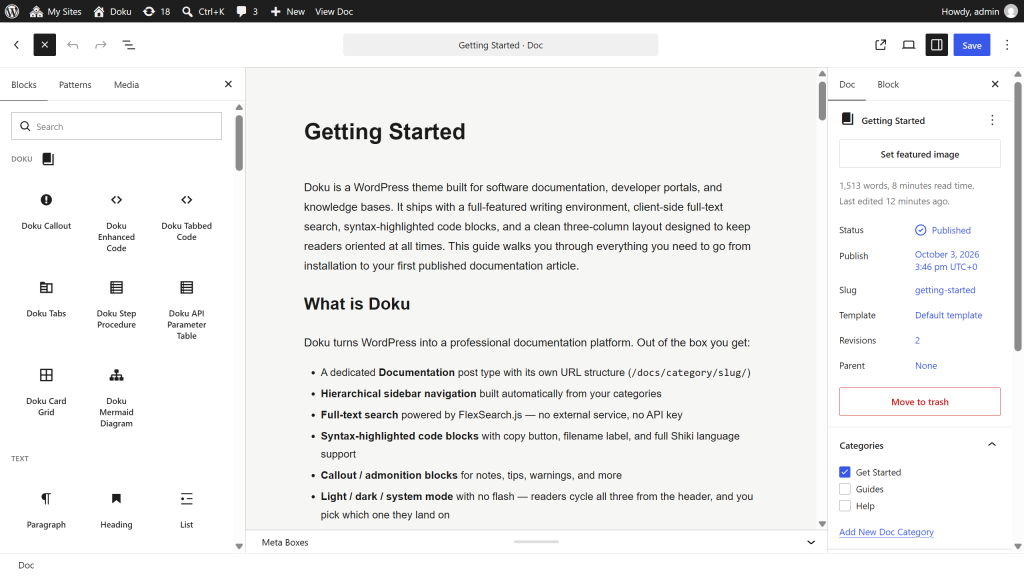
A replacement for the core Code block with documentation-specific features. Here is one with a filename label and line numbers turned on:
define( 'WP_DEBUG', true );
define( 'WP_DEBUG_LOG', true );
define( 'WP_DEBUG_DISPLAY', false );
Options (in the block toolbar / inspector panel):
| Option | Description |
|---|---|
| Language | Any of the 235 languages Shiki bundles |
| Filename | Optional label shown in the code header (e.g. config.yaml) |
| Collapsible | Adds an expand/collapse button; useful for long snippets |
| Show line numbers | Toggle line number display |
| Wrap long lines | Soft-wraps long lines instead of scrolling horizontally; useful for shell output, URLs, or JSON |
Commonly used: bash, c, cpp, css, diff, docker, elixir, go, graphql, html, java, javascript, json, kotlin, markdown, nginx, php, python, ruby, rust, scss, shell, sql, swift, toml, tsx, typescript, xml, yaml, zig.
Syntax highlighting is rendered by Shiki in the editor, with the highlighted HTML saved into the post content. No syntax-highlighter JavaScript runs on the frontend.
A copy-to-clipboard button appears in the top-right corner of every code block.
Callout Block — doku/callout
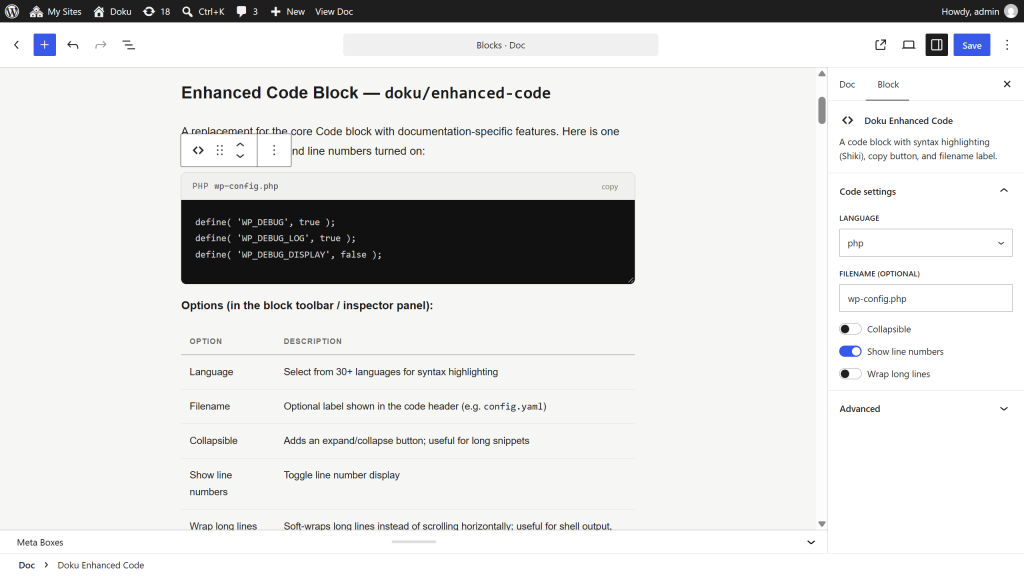
Styled admonition boxes for important information. Four of the five variants, as a reader sees them:
Doku Core registers the doc post type, so your documentation survives a theme change.
Press Cmd+K or Ctrl+K anywhere on the site to open search without reaching for the mouse.
Changing a permalink after a page has been published breaks any link pointing at the old address.
Editing theme files directly means losing those changes at the next update. Use a child theme.
Five variants:
| Variant | Color | Default title |
|---|---|---|
| Note | Your accent color (green by default) | 📝 NOTE |
| Tip | Green | 💡 TIP |
| Warning | Amber | ⚠️ WARNING |
| Danger | Red | 🚨 DANGER |
| Info | Indigo | ℹ️ INFO |
Select the variant from the inspector panel. The title is editable, and leaving it empty falls back to the default title above rather than hiding the title row. The body supports inner blocks: paragraphs, lists, and code blocks.
Tabbed Code Samples — doku/tabbed-code
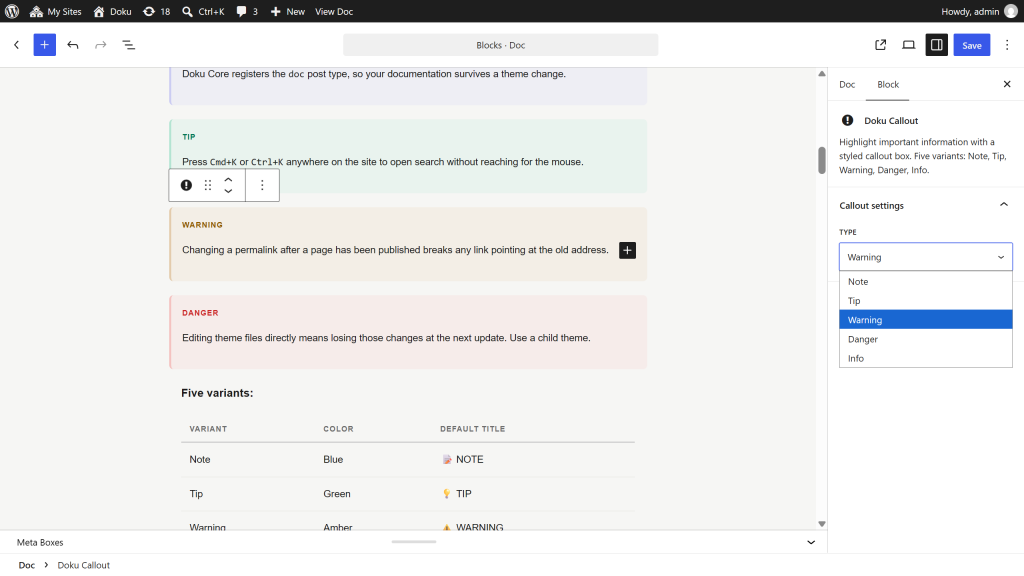
A container block for showing the same code example in multiple languages. Pick a tab below, then look at any other tabbed block on the site:
curl https://example.com/wp-json/doku/v1/search-indexconst docs = await fetch( '/wp-json/doku/v1/search-index' ).then( r => r.json() );$docs = json_decode( wp_remote_retrieve_body(
wp_remote_get( rest_url( 'doku/v1/search-index' ) )
), true );How to use:
- Insert a Doku Tabbed Code block.
- Inside it, add one Doku Enhanced Code block per language.
- Each Enhanced Code block’s Filename becomes the tab label, falling back to its Language when no filename is set.
The tab bar replaces the individual code headers: it carries the labels on the left and a single copy button on the right, which copies whichever sample is showing. A group with only one code block inside keeps its normal header instead of growing a one-tab bar.
Keyboard accessible: Tab to reach the selected tab, ← / → to move between tabs, Home / End to jump to the first or last.
Language sync: When a reader selects a language tab, all Tabbed Code blocks on the page switch to the same language, and so does any Tabs block with a tab of that name. The selection is saved in localStorage — a reader who prefers Python will see Python tabs across the entire site. Tabs are matched by their exact label, so give the same language the same label everywhere: a JavaScript tab does not follow a JS tab, and a tab labeled with a filename follows only tabs with that filename. In a browser that blocks site storage, the tabs still switch together on the page, but the choice is not remembered on the next page.
Sync always applies. To keep a block out of it, give its tabs labels no other block uses.
Tabs — doku/tabs
Tabs for anything that differs by platform, plan or audience, where a tab holds more than one code sample. Pick the way you install themes:
Go to Appearance > Themes > Add New > Upload Theme and choose doku.zip. Activate it, then click the Begin installing link in the notice to install Doku Core.
Install and activate the theme, then the bundled plugin:
wp theme install doku.zip --activate
wp plugin install wp-content/themes/doku/plugins/doku-core.zip --activate
How to use:
- Insert a Doku Tabs block. It starts with two tabs.
- Type each tab’s label in the field at the top of the tab, then add any blocks beneath it: paragraphs, lists, code, callouts, images.
- Add a tab with the inserter at the end of the block.
The editor shows every tab stacked under its label, so all of them can be edited at once. On the page the labels move into a tab bar, with the same keyboard support as Tabbed Code. A tab left without a label is shown as “Tab 1”, “Tab 2” and so on.
Sync: Tabs follow the same rule as Tabbed Code. Choosing macOS in one block switches every Tabs and Tabbed Code block on the page that has a macOS tab, and the choice is remembered on the next page. A link to a heading inside a hidden tab opens that tab first.
Without JavaScript every tab is shown, one after another, each under its label.
Step Procedure Block — doku/step-procedure
Numbered step-by-step instructions with styled circle number badges. A step can hold any block, including a code sample:
-
Create a folder for the child theme beside Doku’s own, named
doku-child. -
Add a
style.cssto it with the header below.Templateis what ties it to the parent.css/* Theme Name: Doku Child Template: doku */ -
Activate Doku Child under Appearance > Themes. Your overrides now survive every update.
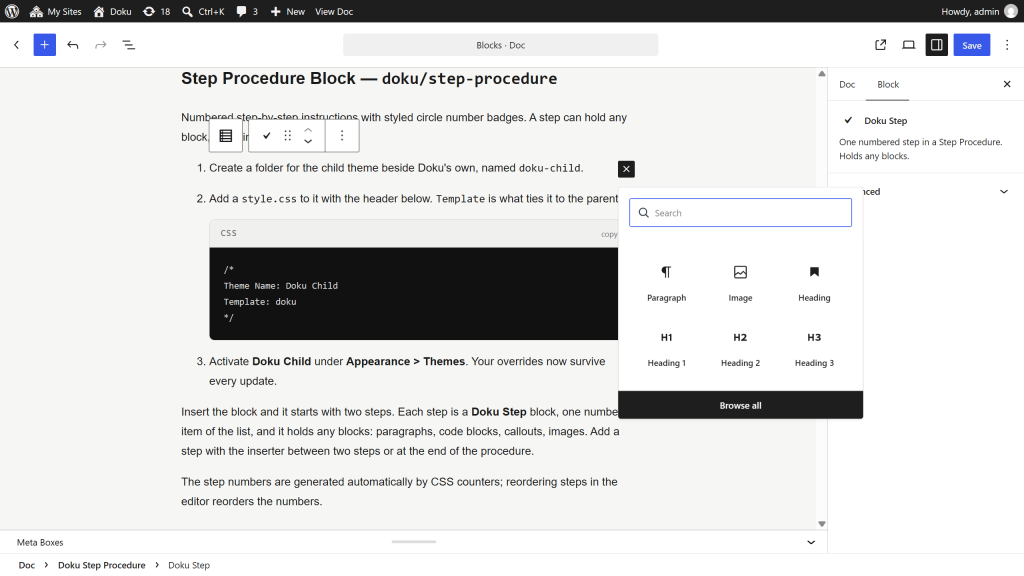
Insert the block and it starts with two steps. Each step is a Doku Step block, one numbered item of the list, and it holds any blocks: paragraphs, code blocks, callouts, images. Add a step with the inserter between two steps or at the end of the procedure.
The step numbers are generated automatically by CSS counters; reordering steps in the editor reorders the numbers.
Accordions — core/details
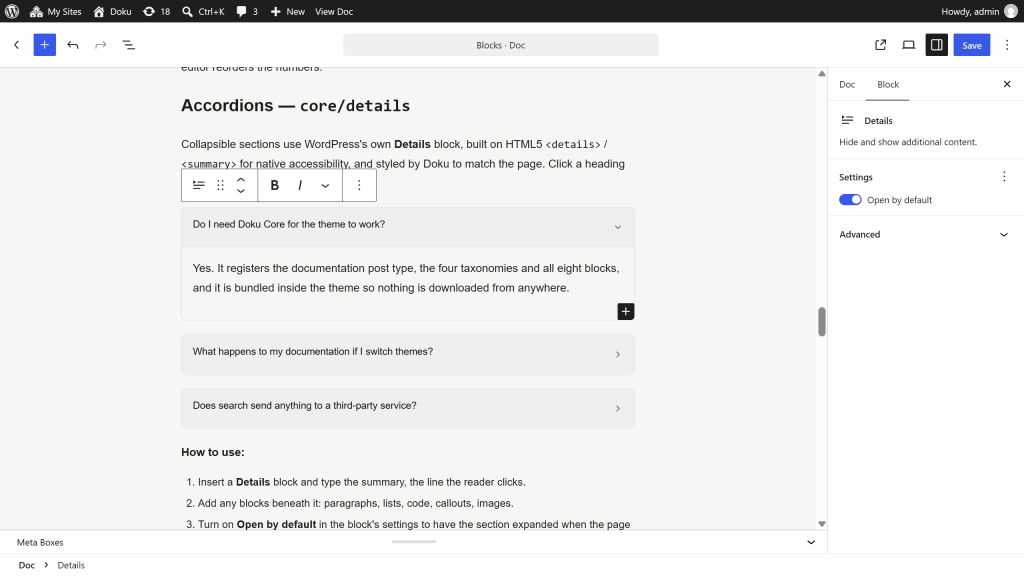
Collapsible sections use WordPress’s own Details block, built on HTML5 <details> / <summary> for native accessibility, and styled by Doku to match the page. Click a heading to open it:
Do I need Doku Core for the theme to work?
Yes. It registers the documentation post type, the four taxonomies and all eight blocks, and it is bundled inside the theme so nothing is downloaded from anywhere.
What happens to my documentation if I switch themes?
Nothing. Every doc, category and version lives in the database and belongs to the plugin, not to Doku, which is the whole reason the two are separate packages.
Does search send anything to a third-party service?
No. The index is built from your own content and searched in the reader’s browser. There is no API key to obtain and no external request on page load.
How to use:
- Insert a Details block and type the summary, the line the reader clicks.
- Add any blocks beneath it: paragraphs, lists, code, callouts, images.
- Turn on Open by default in the block’s settings to have the section expanded when the page loads.
Several Details blocks in a row each open and close on their own. Give them the same Name attribute under Advanced and opening one closes the others.
Doku hides the Details block’s color and typography settings, so every accordion matches the rest of the page.
In Chrome, Edge and other Chromium browsers a section slides open and closed; other browsers open it at once.
Keyboard accessible: Tab to focus, Enter or Space to toggle.
API Parameter Table Block — doku/api-param-table
A structured table for documenting API endpoints, function arguments, or configuration options.
Columns:
| Column | Description |
|---|---|
| Parameter | Name of the parameter (monospace) |
| Type | Data type (monospace) |
| Required | Yes / No toggle |
| Default | Default value |
| Description | Free-text description |
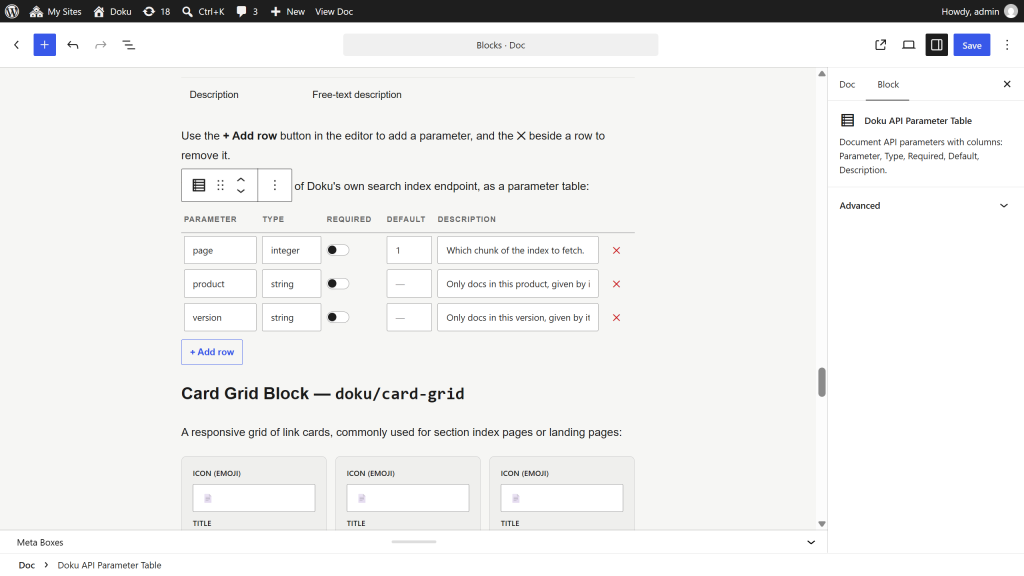
Use the + Add row button in the editor to add a parameter, and the ✕ beside a row to remove it.
The query parameters of Doku’s own search index endpoint, as a parameter table:
| Parameter | Type | Required | Default | Description |
|---|---|---|---|---|
| page | integer | No | 1 | Which chunk of the index to fetch. |
| product | string | No | — | Only docs in this product, given by its slug. |
| version | string | No | — | Only docs in this version, given by its slug. |
Card Grid Block — doku/card-grid
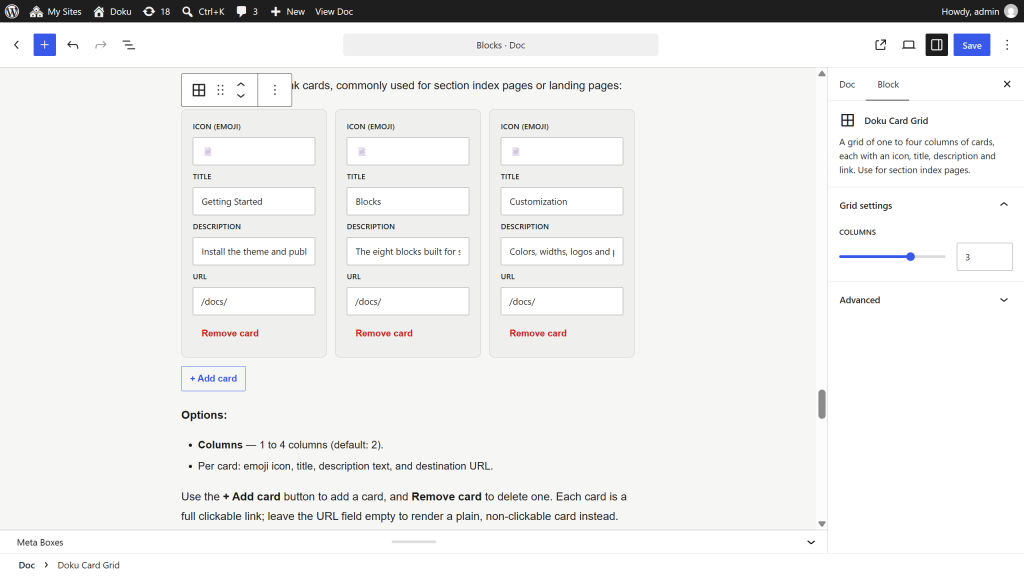
A responsive grid of link cards, commonly used for section index pages or landing pages:
Options:
- Columns — 1 to 4 columns (default: 2).
- Per card: emoji icon, title, description text, and destination URL.
Use the + Add card button to add a card, and Remove card to delete one. Each card is a full clickable link; leave the URL field empty to render a plain, non-clickable card instead.
Tip: Use a Card Grid in a section’s overview doc to give readers a map of the section before they dive into individual docs.
Mermaid Diagram Block — doku/mermaid
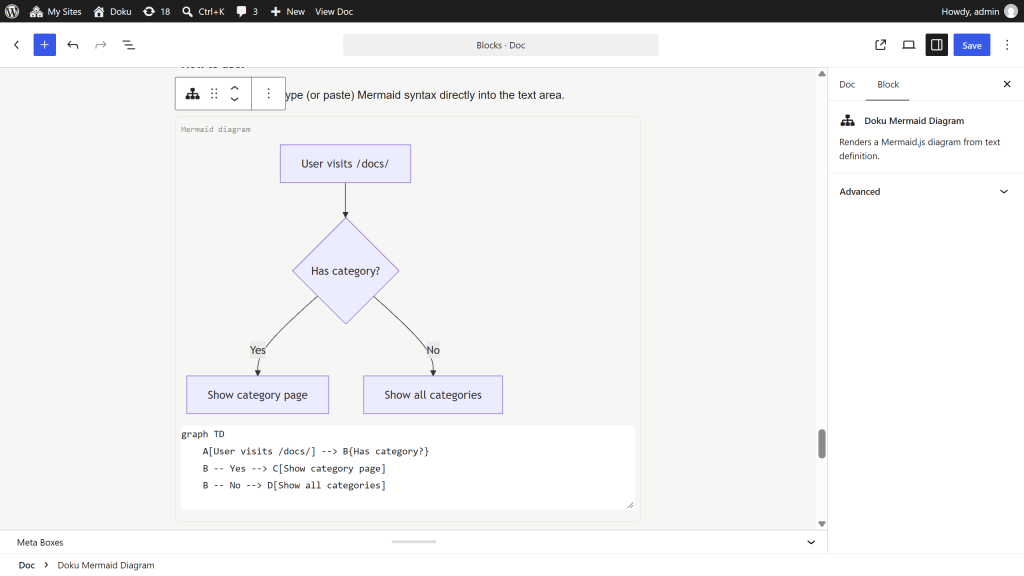
Renders Mermaid.js diagrams from text definitions. Useful for flowcharts, sequence diagrams, and entity-relationship diagrams.
How to use:
Insert the block and type (or paste) Mermaid syntax directly into the text area.
A diagram brought in by the Markdown importer is saved as a finished image, so the page needs no script to show it. One written or edited in the editor is drawn in the reader’s browser, and Mermaid.js loads only on pages holding such a diagram.
Diagrams follow the active color scheme: text, node fills, borders and connector lines all use the theme’s own tokens, so a diagram stays readable in both light and dark mode and re-colors instantly when the reader flips the toggle. A diagram that sets its own colors with Mermaid’s classDef or style statements keeps them untouched.
Supported diagram types include: graph, flowchart, sequenceDiagram, classDiagram, erDiagram, gantt, pie, gitGraph, and more — refer to the Mermaid documentation for syntax.
Keyboard Keys
Keyboard shortcuts are styled as physical keys inside a paragraph, heading or list item.
This uses WordPress’s own Keyboard input format rather than one of Doku’s: select the text and pick Keyboard input from the toolbar’s formatting dropdown (the ⌄ arrow at the end of the toolbar). Apply it again to remove it.
Press Ctrl + K to open search.
That format emits a plain <kbd> element with no wrapper class, and Doku styles the bare element. It is the same markup the Markdown importer produces for <kbd> tags in your source files — so imported shortcuts and hand-authored ones style identically and can be edited the same way.
Tables
WordPress’s own Table block is styled to match. Code in a table cell, such as a property name, a header or a file path, stays on one line instead of breaking at a hyphen, and a table too wide for the column scrolls sideways.
This applies when Fixed width table cells is off in the block’s settings, so that each column takes the width its content needs. Tables imported from Markdown start with it off; a table you add in the editor starts with it on, which shares the width equally between the columns and lets code break wherever it has to.