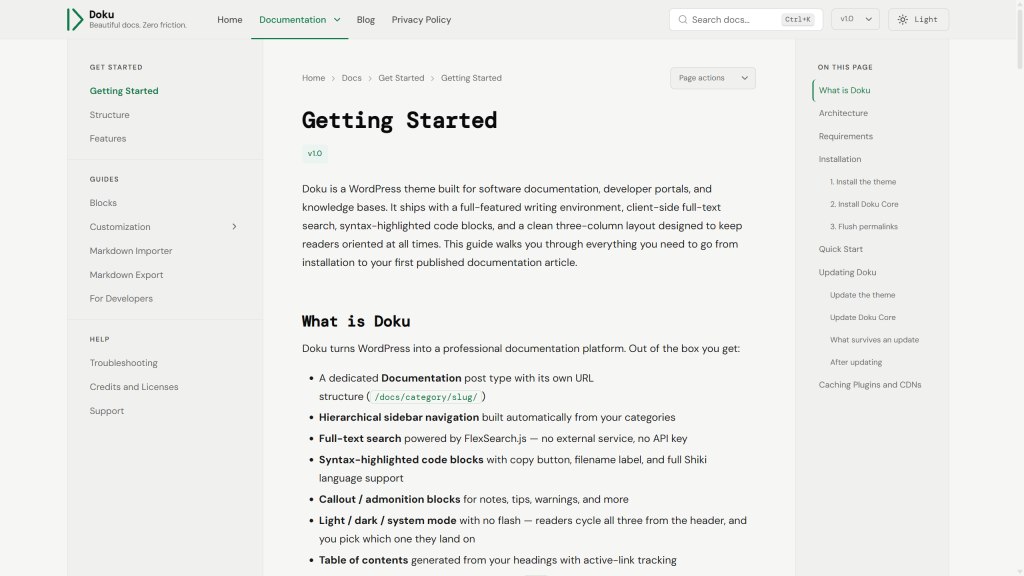
Doku is a WordPress theme built for software documentation, developer portals, and knowledge bases. It pairs a three-column reading layout with instant in-browser search, highlighted code blocks, eight documentation blocks for the WordPress editor, and an importer that turns Markdown and GitBook exports into editable pages. This guide walks you through everything you need to go from installation to your first published documentation article.
What is Doku
Doku turns WordPress into a professional documentation platform. Out of the box you get:
- A dedicated Documentation post type with its own URL structure (
/docs/slug/, with child pages under their parent:/docs/parent/child/) - Hierarchical sidebar navigation built automatically from your categories
- Full-text search powered by FlexSearch.js — no external service, no API key
- Syntax-highlighted code blocks with copy button, filename label, and full Shiki language support
- Callout / admonition blocks for notes, tips, warnings, and more
- Light / dark / system mode with no flash — readers cycle all three from the header, and you pick which one they land on
- Table of contents generated from your headings with active-link tracking
- A Markdown importer that brings in existing
.mdfiles and GitBook exports as draft posts, and a Markdown export that takes any page back out - A version switcher, Mermaid diagrams, KaTeX math and a “Was this page helpful?” rating
- Built to WCAG 2.1 AA
Architecture
Doku is two packages that work together:
doku— The theme. Handles layout, typography, navigation, and all visual presentation.doku-core— A companion plugin bundled inside the theme. Registers thedocpost type, taxonomies, custom blocks, the Markdown importer, search index, and helpfulness ratings.
This separation is intentional: if you ever switch themes, your documentation posts and categories remain intact. Content portability is a hard requirement.
Requirements
| Requirement | Version |
|---|---|
| WordPress | 7.0 or higher |
| PHP | 7.4 or higher |
| Node.js | 20+ (block development only) |
Installation
1. Install the theme
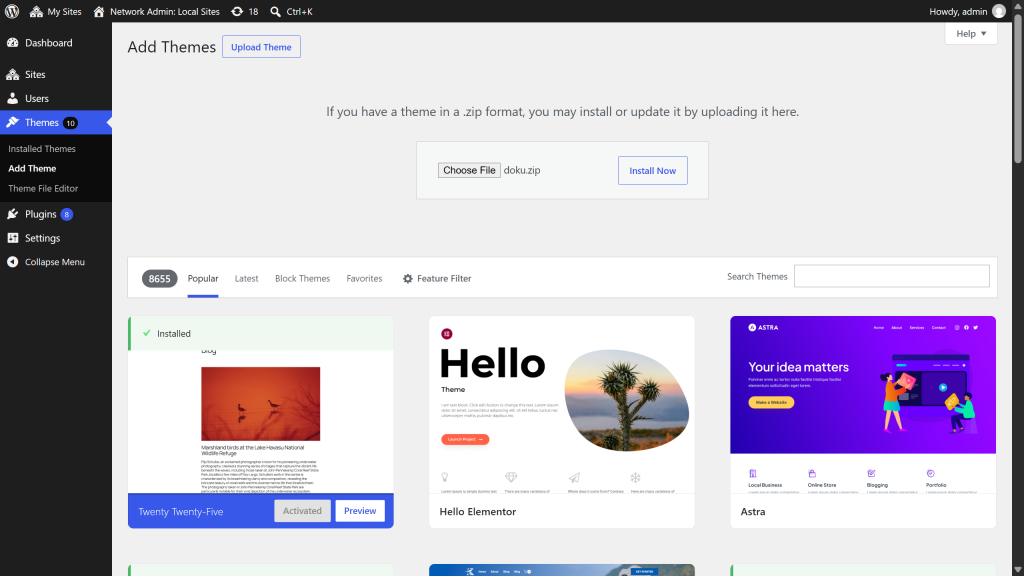
- Go to Appearance > Themes > Add New > Upload Theme.
- Upload the
doku.zipfile and click Install Now. - Click Activate.
The full download from ThemeForest is a zip that holds doku.zip beside a README and the license. Upload doku.zip itself: given the outer zip, WordPress stops with “The package could not be installed. The theme is missing the style.css stylesheet.”
2. Install Doku Core
After activating the theme, WordPress shows a notice at the top of the admin listing Doku Core as a required plugin, and One Click Demo Import as a recommended one.
- Click the Begin installing link in the notice, or go to Appearance > Install Plugins.
- Select Doku Core, choose Install from the bulk actions, and apply.
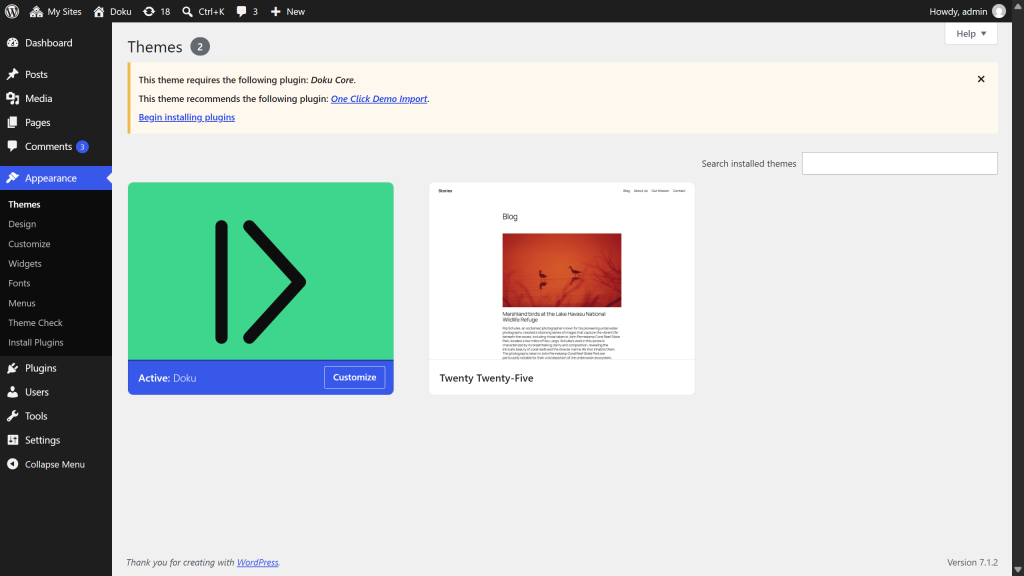
The plugin is installed and activated in a single step — the copy is bundled inside the theme, so nothing is downloaded from an external server.
Doku Core registers the doc post type, taxonomies, all custom blocks and the editor’s Doku Options box — none of those exist without it, so the notice does not go away until the plugin is active.
Why is this a separate plugin? So your documentation survives a theme change. The
docpost type belongs to Doku Core rather than to the theme, which means switching themes leaves every documentation page intact. For the same reason, Doku Core is not deactivated when you switch away from Doku — deactivate it manually if you genuinely want to remove it.
3. Flush permalinks
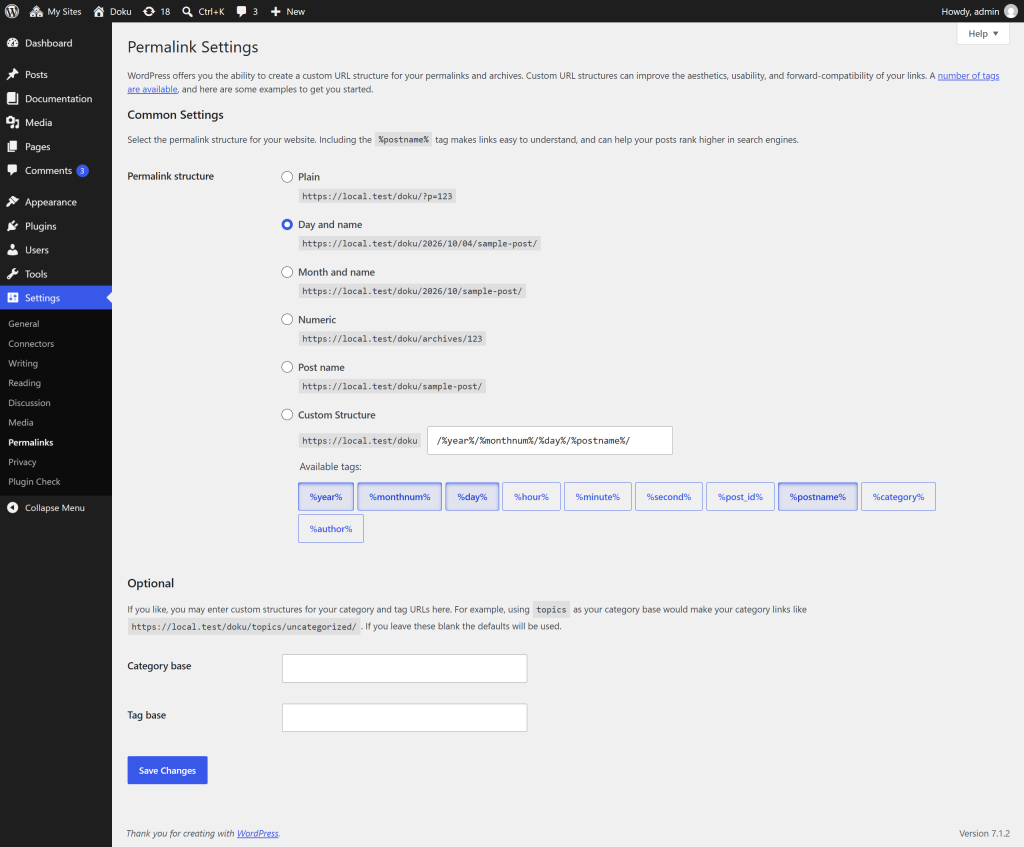
Doku Core refreshes WordPress’s permalink rules when it is activated, so /docs/ addresses normally work straight away. If one returns a “page not found” error, go to Settings > Permalinks and click Save Changes. No changes are needed: saving is what refreshes the rules.
4. Import the demo content (optional)
The demo content rebuilds the live demo on your site: its documentation, pages, posts, images, menus, widgets and Customizer settings. Starting from a copy and editing it is often quicker than starting from a blank site.
- Doku recommends the free One Click Demo Import plugin in the same notice as Doku Core. Install it from Appearance > Install Plugins.
- Go to Appearance > Import Demo Content and click Import Demo Data.
- The next screen lists the plugins the demo needs. Doku Core is required. One Click Demo Import also offers a few plugins of its own, some of them preselected. Uncheck any you don’t want, then click Continue & Import.
- Leave the page open until Import Complete! appears. The images are downloaded from the demo site, so this can take a few minutes.
The import replaces your homepage setting, menu locations and Customizer settings with the demo’s, and adds the demo’s widgets, so run it on a new site. No post, page or doc is deleted or overwritten: your existing content stays as it is, and a demo item that already exists is skipped.
The demo’s logo is an SVG file, so it comes across only when your account may upload SVG files: an Administrator on a single site, or on multisite a Super Admin, once svg is added under Network Admin > Settings > Upload file types (see SVG logos). Otherwise everything else imports, the header shows your site title in place of the logo, and the Import Complete! screen says the logo was left out. Upload your own under Appearance > Customize > Site Identity.
If the import stops partway, run it again. Items that already came across are skipped, so it picks up the rest. If it can’t run at all on your host, use Tools > Import > WordPress to import demo/content.xml from the Doku theme folder (wp-content/themes/doku/demo/). That brings in the content and images only, as they were on the demo site: images shown at a reduced size still load from the live demo until you select them again from the Media Library, and some links in the content still lead there too. You then set the rest yourself: the homepage under Pages, Posts, and the Front Page, the menus under Sidebar Navigation and Header Navigation, and the look under Customization.
Quick Start
If you imported the demo, open any doc under Documentation and edit it, or add your own alongside them. To start from a blank site:
- In the WordPress admin sidebar, click Documentation > Add New.
- Write your first article using the block editor.
- In the right-hand panel under Categories, assign or create a
doc_category. - Click Publish.
- Click View Doc, or visit
/docs/{post-slug}/, to see it live.
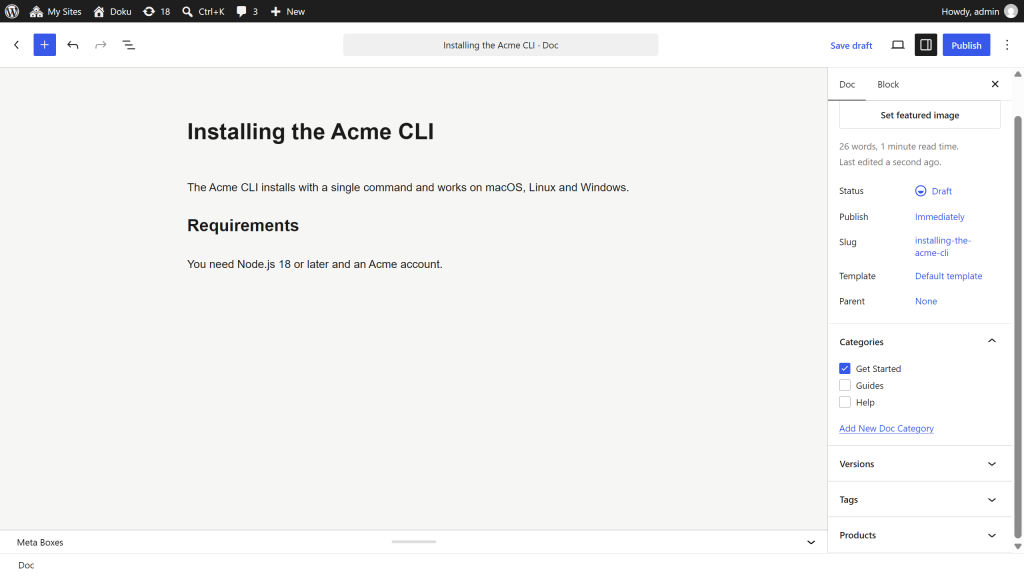
The theme automatically generates sidebar navigation from your categories, breadcrumbs from post hierarchy, and an “On this page” table of contents from your headings. You don’t need to configure any of that manually.
Updating Doku
Doku and Doku Core share one version number, and the theme package carries the plugin inside it. Update the theme first; the plugin follows from the same file.
Update the theme
Three routes, all ending in the same place. Take a backup first, and read the changelog before updating a live site.
With the Envato Market plugin. Install the free Envato Market plugin, connect it with a personal token, and Doku appears on its Envato Market > Themes screen with an update link whenever a new version ships. This is the only route that tells you an update exists rather than waiting for you to check.
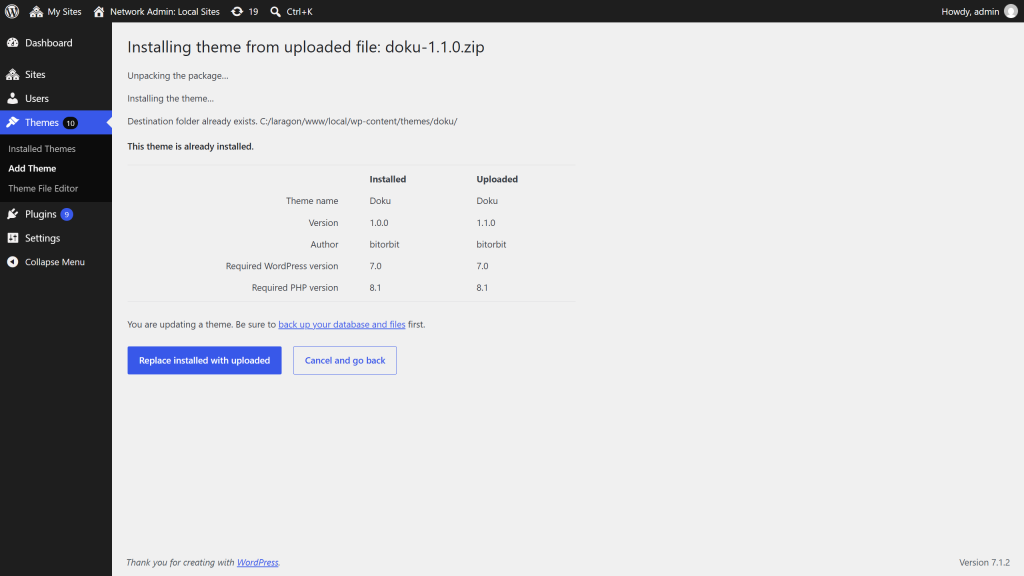
By uploading the new zip. Download the latest version from your ThemeForest Downloads page, then go to Appearance > Themes > Add New > Upload Theme and upload doku.zip (in the full download, it sits inside the outer zip). WordPress sees that Doku is already installed and offers a comparison of the two versions with a Replace installed with uploaded button. Click it.
Over FTP. Delete wp-content/themes/doku/ and upload the new doku folder in its place. Delete rather than merge — an overwrite leaves behind files the new version removed, and a stale PHP file inside a theme is harder to diagnose than a missing one.
Update Doku Core
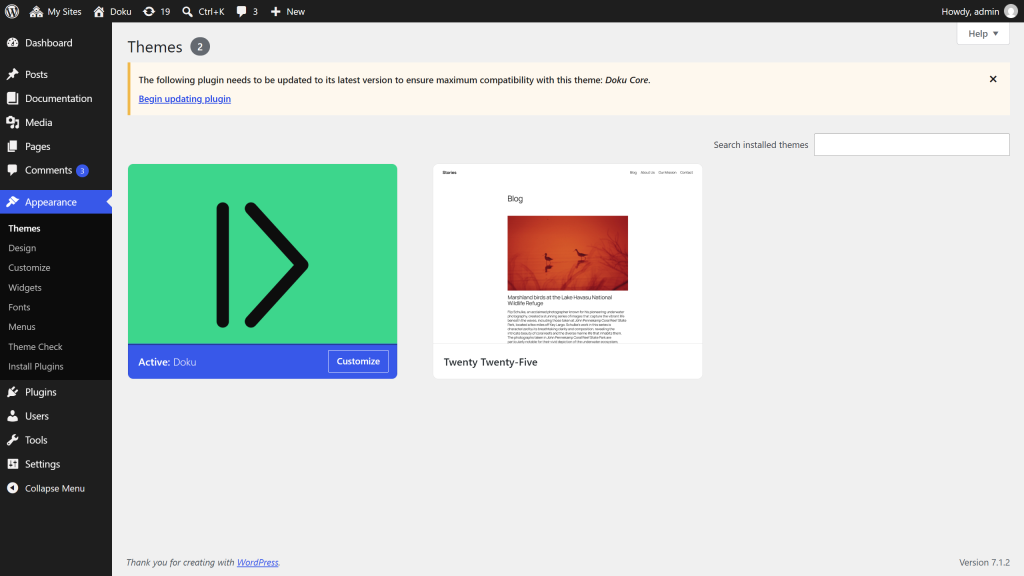
Once the theme is updated, the plugin notice appears again, because the copy bundled in the new theme is newer than the one installed. Click Begin updating plugin in the notice, or go to Appearance > Install Plugins, select Doku Core, choose Update from the bulk actions and apply.
This never touches your documentation. Posts, categories, versions, ratings and per-entry overrides all live in the database, not in the plugin folder.
What survives an update
Everything you set through WordPress:
| What | What happens |
|---|---|
| Documentation, posts, pages, media | Kept — they live in the database |
| Categories, versions, products and tags | Kept |
| Customizer settings | Kept |
| Doku Options set on individual entries | Kept |
| Menus and widgets | Kept |
| Helpfulness ratings | Kept |
| Your child theme | Kept — updating the parent never touches it |
| Edits made directly to Doku’s own files | Lost |
That last row is what the child theme exists for. If you have edited main.css, a template or functions.php inside doku/ itself, move those changes into a child theme before you update — see Creating a Child Theme.
After updating
- If documentation pages return a 404, go to Settings > Permalinks and click Save Changes.
- If you run a caching plugin or a CDN, clear both. Doku’s own stylesheets and scripts carry the version number in their URL, so browsers fetch the new ones by themselves — but a full-page cache serves the old HTML regardless of what changed underneath it.
Caching Plugins and CDNs
Doku works with full-page caching plugins and CDNs. The rating widget, search and the color-scheme toggle all keep working on pages served from a cache. One thing needs a setting:
Clear every cached page when you publish. Some of what a doc page shows is built from all your docs, not just that page:
- the automatic sidebar tree, which lists every published doc
- the Previous / Next links on the pages either side of a new or moved doc
- the version dropdown, when you add a
doc_versionterm - the docs index and the category, version, product and tag pages, whose cards and right-hand column list every category and tag
Most caching plugins clear only the edited page and its archives when you publish, so every other cached page keeps showing the old sidebar and links until its cache expires. In your caching plugin, have it clear all pages when a post is published or updated. If the plugin has no such option, clear the whole cache yourself after you publish, unpublish, retitle or reorder docs, or change their categories.
A sidebar built from a Docs Sidebar menu changes only when you edit the menu, and most caching plugins already clear everything when a menu is saved. The Previous / Next links and the version dropdown still need the setting above.
Don’t delay Doku’s scripts. Features such as “Delay JavaScript execution” hold scripts back until the reader first moves the mouse, scrolls or taps. Doku keeps working under them, but until that first interaction the table of contents stays empty, and code copy buttons, collapsible code, tabs and tabbed code samples do nothing. Add these to your plugin’s delay exclusions:
/themes/doku/assets/js/
dokuData
The first line covers the theme’s scripts; the second covers the settings they read, which WordPress prints inline beside them. On pages with diagrams or math, add mermaid and katex as well. The small script at the top of every page, which picks the color scheme before anything is drawn, already opts out of WP Rocket, LiteSpeed Cache and Cloudflare Rocket Loader on its own.
Keep the styles that scripts use. “Remove unused CSS” features keep only the rules that match the page as it first loads. Doku’s scripts build parts of the page afterwards — the table of contents, search results, code tabs, heading links — and switch classes as readers open menus and change the color scheme, so the rules for those can be removed and the parts appear unstyled. If your plugin can leave whole stylesheets alone, exclude:
/themes/doku/assets/css/If it only takes selectors, add these to its safelist (sometimes called an allowlist):
.open
.visible
.active
.expanded
.copied
.selected
.has-tabs
.no-hover
.no-transition
.flip-left
.align-right
.toc-sub
.toc-sub2
.heading-anchor
.doku-icon--link
.doku-tab-bar
.doku-tab-list
.doku-tab
.doku-tab-copy
.doku-search-result
.doku-search-result-title
.doku-search-result-section
.doku-search-result-excerpt
.doku-search-empty
.doku-search-status
.katex-display
[data-theme="dark"]
[data-theme-mode]
[aria-expanded]
[open]
[hidden]