The Branding section of Appearance > Customize > Doku Options decides which color scheme a visitor starts on and which accent the whole design is drawn from. A child theme can go further.
Default Color Scheme
The first control in the Branding section picks which theme a first-time visitor lands on — system, light or dark, the same three positions the header toggle offers. It sits above the accent pickers because those are set per scheme. See Dark Mode for the full behavior, including why it will not appear to change anything if you have already used the toggle yourself.
Accent Color
The Branding section has two color pickers: one for light mode, one for dark mode. They are set separately because a color with enough contrast on a white background is usually too dark on a near-black one — pick a lighter tint for dark mode.
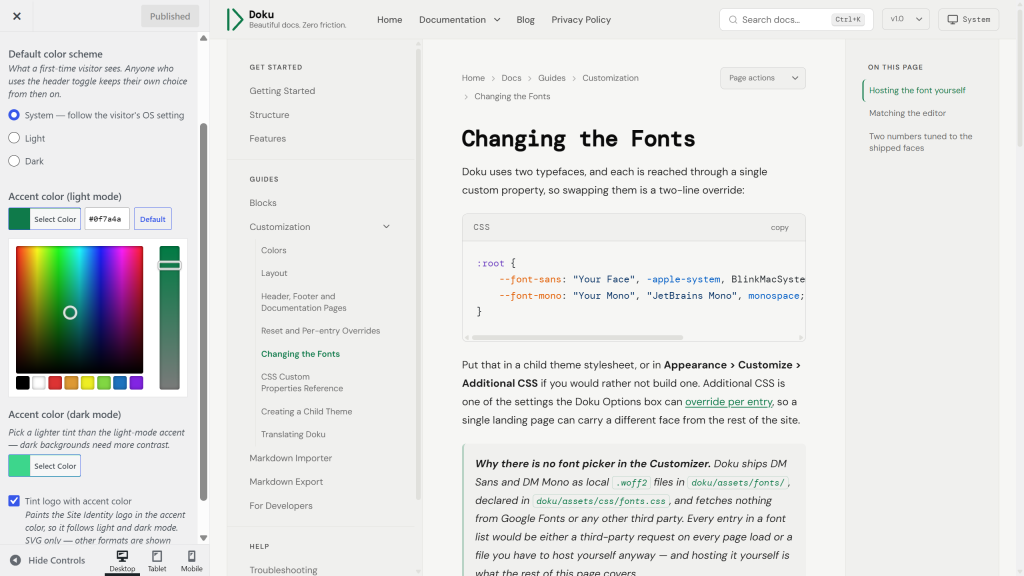
The accent is not a single color in the design. Links, active sidebar items, tag chips, hover backgrounds and Note callout tints are all derived from it at varying strengths. Setting one picker updates all of them; you do not need to touch the individual properties.
Version badges set your accent on a pale tint of itself, which costs a little contrast. For light mode, pick an accent that reaches about 5:1 against white rather than just the 4.5:1 minimum, and the badges keep readable text too.
The derived values are only emitted once your accent differs from the shipped default, and the default theme carries no hover tint — --color-accent-hover ships fully transparent. So hover backgrounds appear as soon as you pick a color of your own. To keep the default green and still get them, set --color-accent-hover yourself in a child theme.
Two tints are the exception, because in both places the highlight says which item a click or Enter will follow rather than merely decorating a hover: the row highlight in a mega menu panel (--color-mega-row-hover) and the marked result in the search panel (--color-sidebar-active). Both ship as real tints of the default green, since neither can wait for you to pick a color, and both follow your accent as soon as you set one, exactly like the rest.
One derived value is not a tint but a contrast decision. A few controls paint text on the accent rather than in it — the skip link, the Button block, the comment form’s submit — and whether that text should be white or near-black depends on how light your accent is. --color-on-accent is worked out from your color and flips between the two on its own, so a pale accent gets dark text and a deep one gets white. Override it in a child theme only if you want a specific pairing.
Diff highlighting deliberately does not follow the accent: --color-diff-add and --color-diff-del stay green and red, because readers arrive expecting that and a brand-colored diff costs more than it gains.
Tint Logo With Accent Color
The last control in the Branding section paints your logo in the accent color. It is off by default, so a full-color logo is left exactly as you uploaded it.
Turn it on and the mark is drawn from the shape of your SVG and filled with the accent — which means it follows both pickers and the header light/dark toggle without you doing anything. Change the accent and the logo changes with it.
Two things to know before you use it:
- It applies to SVG logos only. The mark is painted using the logo’s shape, not its colors, so an opaque PNG or JPEG would come out as a solid accent-colored rectangle. Rather than let that happen, Doku ignores the setting for any other format and shows the image unchanged. If the box is ticked and nothing looks different, the logo is not an SVG.
- The result is one color. That is the point of the option, but it also means a logo whose identity depends on two or more colors should stay untinted.
A tinted mark is drawn 32 pixels tall, matching the height of the search field and theme toggle beside it, with the width following your artwork’s aspect ratio. On a narrow screen a very wide wordmark is scaled down to fit the space it has rather than pushing the search field off the row, so it stays readable at phone widths.
With a Dark mode logo set, the tint paints whichever of the two matches the current theme, so you can use a different shape in dark mode and still have both in your accent color. Two details follow from how the tint works. It is keyed on the Site Identity logo: if that one is not an SVG, nothing is tinted, whatever the dark logo is. And if the dark logo is not an SVG, dark mode reuses the light one’s shape — the tint paints a single flat color either way, so a raster dark version has nothing it could contribute.
Overriding colors manually
If you need finer control than the accent pickers give you — a different border tone, a custom Warning callout tint — override the CSS custom property in a child theme stylesheet:
:root {
    --color-warning: #your-color;
}

[data-theme="dark"] {
    --color-warning: #your-dark-color;
}
Always update both
:root(light mode) and[data-theme="dark"](dark mode) when changing color properties. Note that the Customizer output is emitted after the theme stylesheets, so for accent-derived tokens the picker wins over a child theme rule unless your rule is more specific.
data-themeis the one to style from. The<html>element also carriesdata-theme-mode, holdinglight,darkorsystem— which of the toggle’s three positions the reader is on. That is a different question: in System it stayssystemwhiledata-themeflips with the operating system. Color rules belong ondata-theme, or they will not follow a reader whose OS scheme changes.