Doku includes a set of reader-focused features that work automatically without any configuration. This page documents all built-in theme functionality beyond the core layout.
Full-Text Search
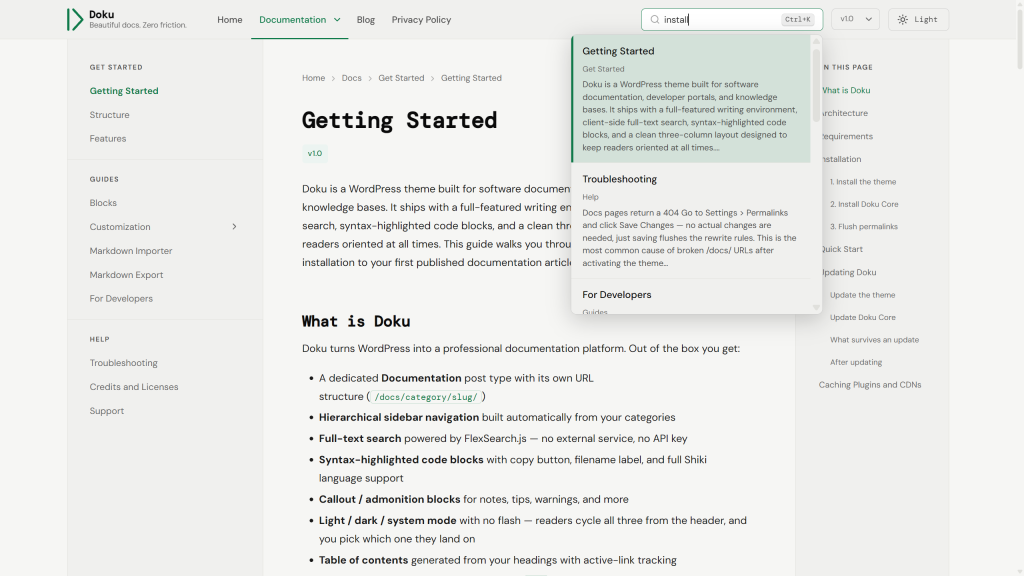
Press Cmd+K (Mac) or Ctrl+K (Windows / Linux) to open the search bar, or click the search field in the header.
- Client-side full-text search powered by FlexSearch.js — no external service, no API key.
- The full text of every published doc is indexed, not just titles and excerpts. A password-protected doc is found by its title only, so its text never reaches readers who lack the password.
- The index is fetched from the site’s own REST API the first time a reader focuses the search field, then held in memory for that page. Searching is entirely local from that point on — there is no server round-trip per keystroke. The index is not persisted between page loads.
- Results display title, section breadcrumb, and a text excerpt.
- Keyboard navigation:
↑/↓to move through results,Enterto open,Escto dismiss. - The pointer and the arrow keys drive the same highlight: moving the mouse over a result marks it exactly as
↓would, andEnterthen opens the result under the pointer. Only one result is ever marked, so it is never ambiguous which oneEnterwill follow. - Pressing
Enterwith no result marked opens a full results page for the query, listing documentation only. The same page is what a reader gets when JavaScript is off. - The
Ctrl+K/⌘Khint shown inside the search field appears only for readers on a device with a physical keyboard, and is hidden on narrow screens where the header needs the space. The shortcut itself always works wherever a keyboard is attached — only the hint is hidden.
The index is cached on the server for one hour, and that cache is cleared immediately whenever a doc is published, edited or deleted, or when a documentation category, version or product term changes — so readers see new content on their next page load rather than waiting out the hour.
Large documentation sites
On sites with more docs than fit in a single chunk (150 by default), the index is fetched in several requests instead of one. Search becomes usable as soon as the first chunk arrives, and a “Still indexing…” line appears below the results while the rest load — so a partial set of results is never mistaken for a complete one. The line disappears once the index is complete.
Sites below the threshold fetch the index in a single request and never show that line. To tune the chunk size, filter doku_core_search_index_chunk_size:
add_filter( 'doku_core_search_index_chunk_size', function () {
    return 50; // smaller chunks — useful if your pages are unusually long
} );
Filtering by product or version
The search index REST endpoint accepts optional ?product=slug and ?version=slug parameters, which restrict the index to docs carrying that term. The bundled search field does not send them — it always searches all published docs — but they are available for custom search UIs. See Search index endpoint under For Developers.
Table of Contents
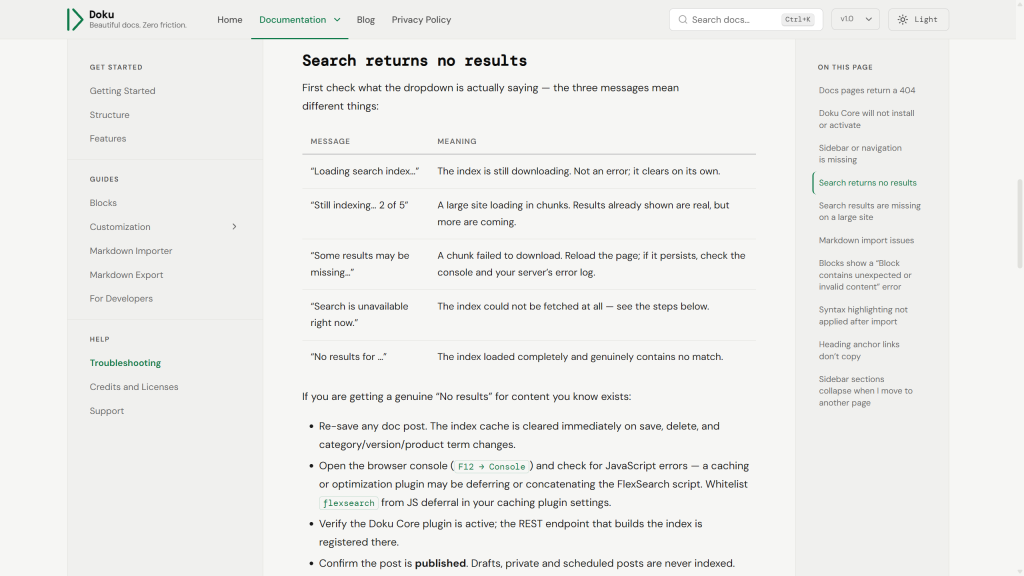
Each doc page automatically generates an “On this page” list from all H2, H3, and H4 headings in the article. H4 appears as a third nesting level under its parent H3. The list starts from the highest level the article uses, so an article whose first heading is an H3 lists its H3s at the top. Posts get the same list, and so do pages once you turn it on; see Layout.
To list fewer levels, set Table of contents depth under Appearance > Customize > Doku Options > Documentation pages. Depth counts from the first level the page uses, so Two levels on a page that starts at H2 lists its H2s and H3s and leaves the H4s out. Headings past the depth stay in the article, with their anchor links; they are only left out of the list. Because the count starts at each page’s own first level, it gives the same result however the page was imported: a file split at each H2 has its ### headings moved up to H2, and those are its first level. To give one page a different depth, override the setting in its Doku Options box (see Per-entry overrides).
- The active heading is highlighted as you scroll, tracked by
IntersectionObserver. While you read under a heading the list leaves out, its parent stays highlighted. - On desktop it appears in the right sidebar, always visible.
- Below 901px it slides in from the right as a panel, opened by a button at the right end of the header.
- A page with no
H2–H4headings has nothing to list, so the right column stays empty, with no “On this page” label, and the header shows no button for it on small screens.
No setup required. The TOC is built from the rendered page content — headings added via the block editor appear automatically.
Anchor Deep Links
Hover over any H2, H3, or H4 heading in an article to reveal a link icon to the left of the heading. Click it to copy that section’s full URL to the clipboard — the anchor briefly turns into a checkmark to confirm, and the address bar updates to match. Paste the link anywhere to point a reader at that exact heading.
The anchor is a real link, so middle-click and Ctrl/Cmd-click still open the section in a new tab, and it remains keyboard-focusable for readers not using a mouse. On sites served over plain HTTP — where the browser clipboard API is unavailable — Doku falls back to a legacy copy so the button still works.
Dark Mode
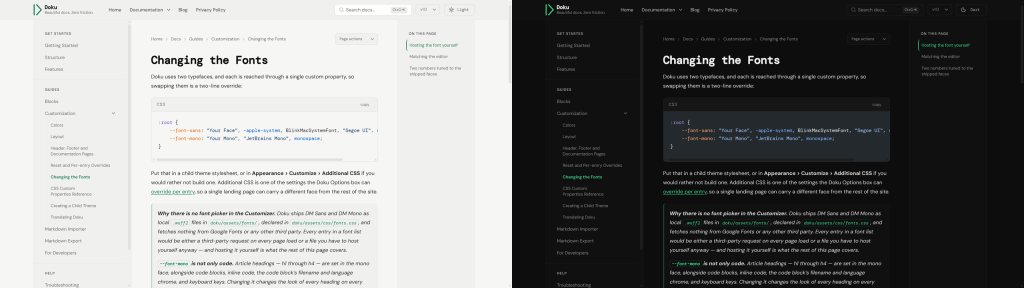
A toggle button in the header cycles through three positions. Each click advances to the next, and the button names and illustrates the one currently active:
| Position | What the reader gets |
|---|---|
| Light ☀ | Light, whatever their system asks for |
| Dark ☾ | Dark, whatever their system asks for |
| System 🖵 | Whatever their operating system asks for, and it keeps following |
- Choice is saved in
localStorageand restored on every page load. - A small inline script in
<head>applies the theme before the page paints — no flash. - In System, changing the scheme in the operating system recolors the page immediately. No reload is needed, and Mermaid diagrams redraw with it.
- Below 560px the header has only room for the icon, and the label is hidden.
System is a real destination, not just a starting point. A reader who forced light or dark can hand control back to their operating system by clicking round to it.
Which position a visitor starts on
Set Default color scheme under Appearance > Customize > Doku Options > Branding. Its three choices are the same three the toggle offers, and a first-time visitor starts on whichever you pick.
“System — follow the visitor’s OS setting” (the default) reads prefers-color-scheme. Only an explicit light preference produces light — a browser reporting no preference, or one too old to support the query, gets dark.
Anyone who has used the toggle keeps their own choice, whatever you set here. That is deliberate: the setting is a default for new visitors, not an override. It also means changing it will not appear to affect you if you have used the toggle on your own site — test in a private window, or clear the doku-theme key from localStorage.
Blocks with their own background color
Pick block colors from the theme’s palette and they follow the scheme. The swatches in a block’s Color settings are Doku’s own colors, and each one changes with the header toggle, just as the rest of the page does:
| Swatch | What it is |
|---|---|
| Accent | Your accent color, the light or dark one from Branding |
| Text on Accent | Text that stays readable on Accent, whatever accent you pick |
| Background | The page background |
| Surface | The slightly raised background of quotes and panels |
| Text | Body text |
| Text Muted | Secondary text |
| Border | The color of rules and outlines |
So a Group with a Surface background, or a paragraph with an Accent background and Text on Accent text, reads correctly in both schemes, and follows a new accent color with no edits.
A custom color stays the same in both schemes. Choose one with the color picker and give the block a text color too. Otherwise the block keeps the theme’s text color, which flips with the scheme: a pale background that reads well in light mode then carries near-white text in dark mode. Doku can’t correct this, because it can’t tell how light a color you picked is. Check the page in both schemes with the header toggle.
Responsive Layout
Documentation pages:
| Breakpoint | Layout |
|---|---|
| ≥ 1101px | Three columns: sidebar · content · TOC |
| 901–1100px | Two columns: content · TOC. The sidebar becomes a drawer, and the content takes the room it leaves, up to the TOC |
| ≤ 900px | Single column. The TOC, or on a listing page, search results or the 404 page the browse column, moves into a panel that slides in from the right, opened by a button at the right end of the header |
Posts and pages follow the same table, with the blog’s category list or a page’s Page Left Column widgets in place of the sidebar, and the Blog Sidebar or Page Right Column widgets in place of the TOC where there is no table of contents. A page column that is switched off, or has no widgets, is simply absent at every width. Search results and the 404 page follow it too, with the Blog Sidebar widgets or the browse column in place of the TOC.
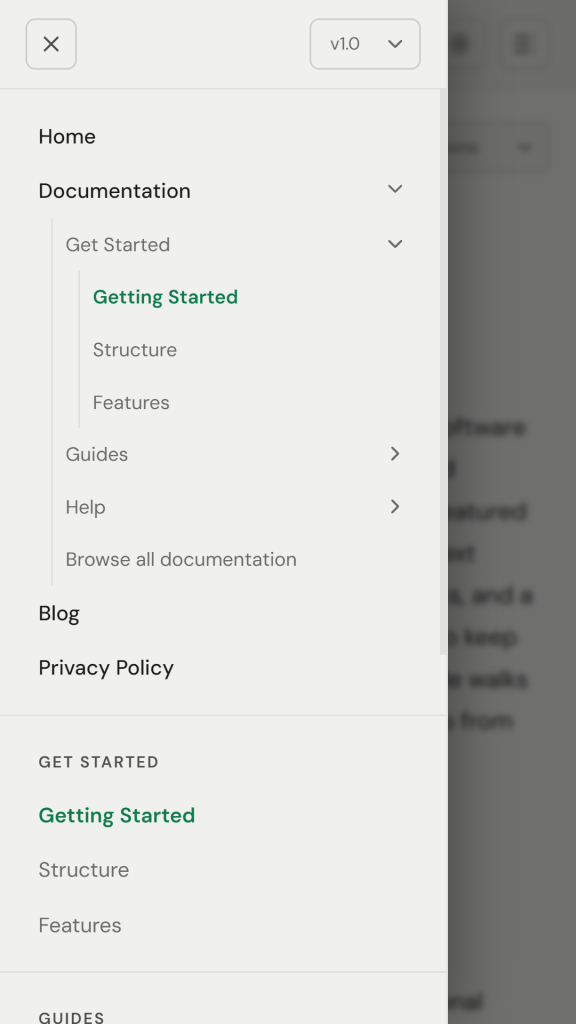
Below 1101px, tap the ☰ button to open the navigation drawer. Tap outside it, tap the × button, or press Esc to close.
The drawer holds your Primary Navigation menu and the version dropdown as well as the documentation tree, because all three are hidden from the header at these widths. It is available on every template, including those that show no left column on desktop.
Its top row — the × close button and the version dropdown — stays pinned while the menus scroll beneath it, so both stay reachable however long your documentation tree is.
Print Stylesheet
Printing any doc page (Ctrl+P / Cmd+P) triggers a clean print layout:
- Hides the sidebar, TOC, header navigation, and search bar.
- Single-column layout at full width.
- Removes background colors for ink efficiency.
- Callouts keep their meaning: the tinted panel goes, but each one’s title and the rule beside it print in the color of its type, so a Danger is still a Danger on paper. This holds whether you printed from light mode or dark.
- Accordions print open, whether or not the reader expanded them, so nothing is missing from the page.
- Links print their address after the text, so the page still says where each one pointed. Links within the page and links around an image print without one, and a long address wraps rather than running off the paper.
- Controls that do nothing on paper are dropped with the navigation: a code block’s Copy and Expand buttons, the anchor link a heading shows on hover, the Page actions menu, and the comment reply form. A collapsible code block prints in full rather than at its on-screen height.
- Printing from dark mode gives the same page as printing from light: code blocks, diagrams and table rules come out as ink on white rather than as dark panels.
Article Helpfulness Rating
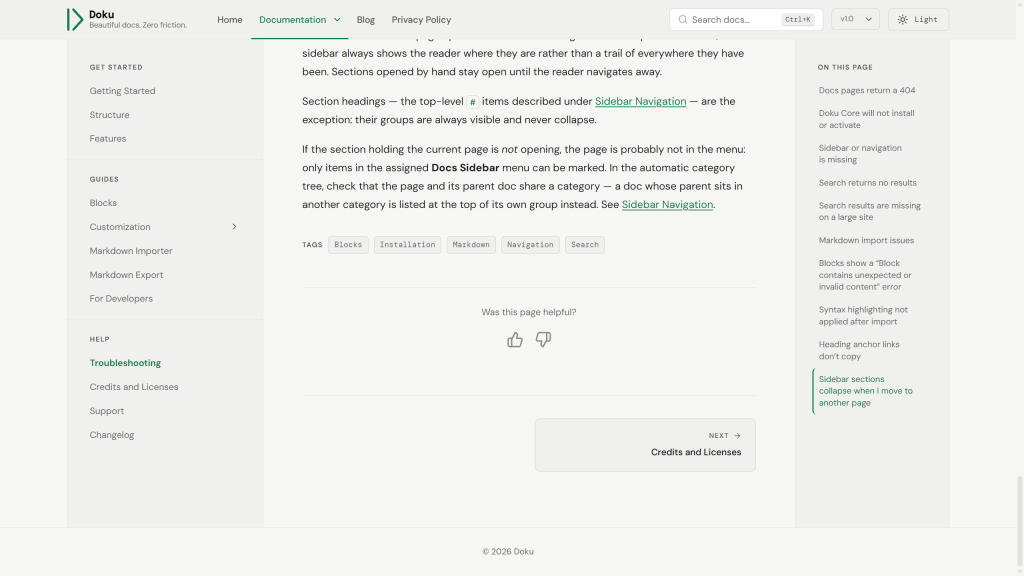
The bottom of every published doc asks “Was this page helpful?” with a thumbs up and a thumbs down.
- One click votes. The chosen thumb fills in, both buttons lock, and a thank-you appears, all without a page reload. If the vote can’t be saved, a message says so and the buttons stay open to try again.
- A
localStorageflag remembers the vote, so the same browser sees its own vote on a return visit and cannot vote twice on that page. - Readers never see a score. The results appear only in the Helpful column of the Documentation list (see Admin Features). With nothing public to push up or down, there is little reason to game the rating.
- Drafts, private docs and password-protected docs show no widget and accept no votes.
- Each doc accepts at most 30 votes in any 10 minutes. Real readers never come close; it stops a script from flooding one page. The limit counts votes on the page, not visitors, so colleagues behind one office network are never told apart or blocked. Both numbers are filterable:
add_filter( 'doku_core_vote_limit', fn() => 60 );                        // votes per window
add_filter( 'doku_core_vote_window', fn() => 5 * MINUTE_IN_SECONDS );    // window length
Votes are stored as post meta on the doc: _doku_helpful_up and _doku_helpful_down (counts), and _doku_helpful_pct (the share of up votes, 0–100, kept for sorting).
Accessibility
Doku targets WCAG 2.1 AA compliance:
- Semantic HTML5 landmarks:
<nav>,<main>,<aside>,<article> - Skip-to-content link (visible on focus)
- ARIA labels on all interactive elements (sidebar toggle, theme toggle, search, copy buttons)
- Keyboard navigation for sidebar, TOC, and search results
- On small screens the navigation drawer and the contents panel behave as dialogs: opening one moves focus into it,
Tabstays inside until it closes, andEscapecloses it and returns focus to the button that opened it - Search is announced as a combobox: screen readers hear the number of results and each result as the arrow keys reach it
- A code sample or table too wide for the column can be scrolled from the keyboard: it takes a tab stop while it overflows, and loses it when it fits
- Header dropdowns are operable without a pointer: each parent’s chevron is a real button reporting its open state,
Tabmoves into the panel once it is open, andEscapecloses everything and returns focus to the trigger - Visible focus rings on all interactive elements — including the heading anchor, which is hover-revealed for mouse users but becomes visible whenever it receives keyboard focus
- Copying a heading link is announced through a polite live region, so the confirmation isn’t limited to the visual checkmark
- Navigation rows — the sidebar tree, the table of contents, and the rows in both widget areas — are built to a 32px minimum target size, and every other interactive control meets WCAG’s 24px target-size criterion, the helpfulness rating’s thumbs and the pagination links included. Most do it by size; the breadcrumb links and a code block’s Copy button are shorter and do it by the space around them, which WCAG accepts in its place. Two things are deliberately smaller, both standard exceptions: a link inside a sentence, and a calendar’s inline month navigation
- Color tokens meeting AA contrast in both light and dark mode: 4.5:1 for body and small text — including breadcrumbs, TOC links, callout titles and syntax-highlighted code — and 3:1 for interface controls such as the helpfulness rating
- Motion stops for readers whose system asks it to: the navigation drawer, the table-of-contents panel, collapsing sidebar sections, accordions, chevrons and the search field arrive instantly, and jumping to a heading from the table of contents arrives without scrolling. Color fades are left as they are, since nothing about them moves
Admin Features
Doc Status column
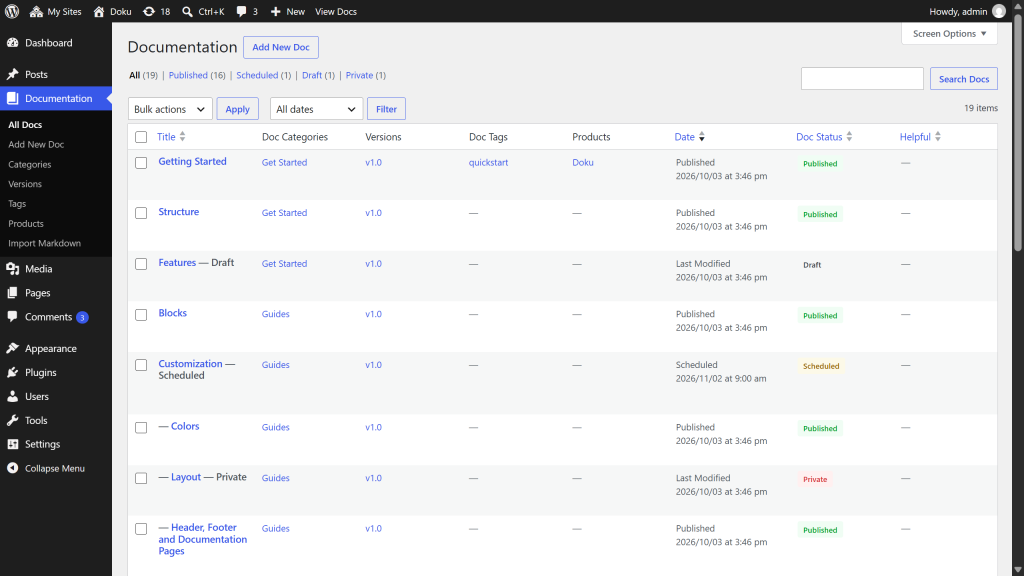
The Documentation list view includes a Doc Status column showing a color-coded badge for each post:
| Badge | Meaning |
|---|---|
| Published (green) | Post is live |
| Draft (gray) | Not yet published |
| Scheduled (amber) | Set to publish at a future date |
| Pending (amber) | Submitted for review, waiting for an editor to publish it |
| Private (red) | Visible only to logged-in users with permission |
Click the column header to sort by status.
Helpful column
The Documentation list view also has a Helpful column: the share of readers who voted thumbs up, and how many voted — for example 83% · 12 votes. A doc nobody has voted on shows a dash.
Click the column header to sort by it. The first click puts the best-rated docs at the top; click again to bring the worst-rated up, which is usually where to start editing. Docs with no votes stay in the list, sorted last either way.