Appearance > Customize > Doku Options > Layout.
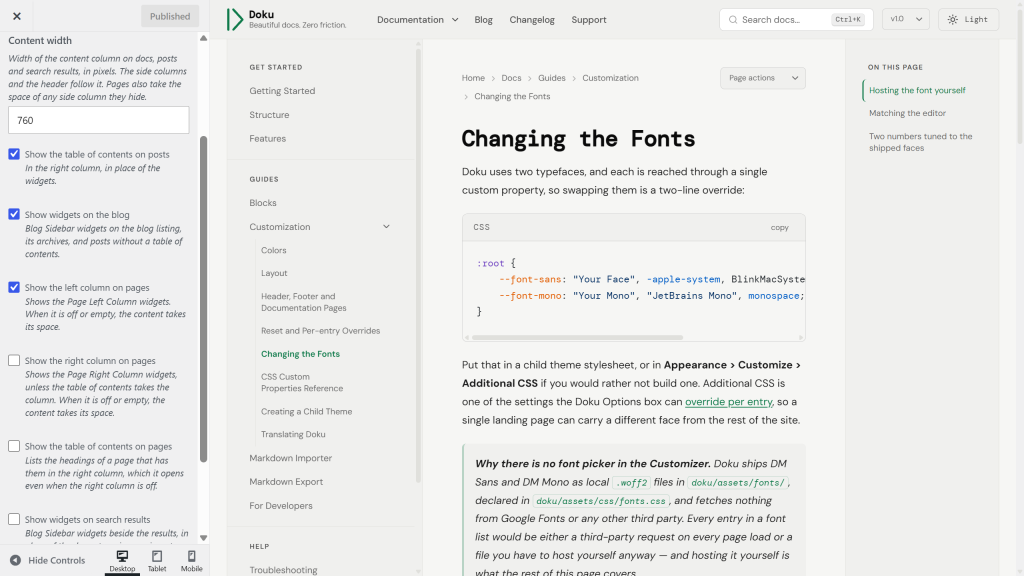
Documentation, posts and pages share one frame: a column on the left, the article, and a column on the right. These settings decide what goes in the side columns and how wide the reading column runs.
| Option | Effect |
|---|---|
| Content width | Width of the content column on docs, posts and search results, in pixels. 760 by default, anywhere from 520 to 1200. Pages are measured from it too; see below. |
| Show the table of contents on posts | On by default. Lists a post’s headings in the right column. With it off, or on a post with no headings, the column shows your Blog Sidebar widgets instead. |
| Show the excerpt under post titles | On by default. Prints a post’s own excerpt between its title and its date. Posts without a written excerpt show nothing there. Turn it off if your excerpts repeat your opening paragraphs, or turn it off for a single post in its Doku Options box. |
| Show widgets on the blog | On by default. The Blog Sidebar widgets, on the blog listing, its archives and any post without a table of contents. |
| Show the left column on pages | On by default. Holds the Page Left Column widgets, and is left out while that area is empty. |
| Show the right column on pages | On by default. Holds the Page Right Column widgets, unless the table of contents takes the column, and is left out while that area is empty. |
| Show the table of contents on pages | Off by default, because most pages are landing, about or contact pages whose headings are layout rather than chapters. Turn it on if your pages are long reading pages, or for just one page in the editor: on a page with headings it opens the right column, whether or not that column is switched on. |
| Show widgets on search results | On by default. The Blog Sidebar widgets beside the results. Off, or with no widgets, the column lists the doc categories, versions, tags and products instead, as a docs listing page does. |
| Show widgets on the 404 page | On by default. The same, for the “page not found” page. |
Reading width
To change it: type a pixel value into Content width, watch the preview, and click Publish. The arrows step in twenties; you can type any value in between. Anything outside 520–1200 is pulled back into range when you save.
Why 760 and not wider. Shorter lines are easier to read: the eye has less distance to travel when it reaches the end of one line and looks for the start of the next, which is why a very wide column makes readers lose their place even when nothing looks wrong. At the default a line of body text runs around ninety characters. Narrow the column and that falls; widen it and it rises.
Content width moves the whole frame. The sidebar and the table of contents keep their own widths, and the frame around all three shrinks or grows to match, so the article always meets the table of contents exactly and the header bar stays lined up with the columns beneath it. There is nothing else to adjust and no way to leave a gap. Posts, search results and the “page not found” page use the same width.
A page’s article fills its frame. At the default content width it is 760px with both side columns, 280px wider with the left one off, 220px wider with the right one off, and the whole 1260px with neither. On a wide screen the text runs to the edge of a side that has no column, in line with the header. The editor’s canvas follows the page you are editing, so a page with its columns off is written at the width it will be read.
Two things worth knowing:
- It only applies on desktop. Below 901px the table of contents is a slide-in panel rather than a column, and the article already spans the window, so these settings change nothing on phones and tablets.
- Wider is not better for long reading. At
900a line of body text runs past 100 characters, beyond the comfortable range.
The side columns
Add widgets under Appearance > Widgets. There are three areas, so the blog and your pages each keep their own:
- Blog Sidebar shows in the right-hand column of the blog listing, its archives and posts, and of search results and the 404 page, wherever the toggles above allow it. On a post that shows a table of contents, the contents take its place.
- Page Left Column shows on the left of pages.
- Page Right Column shows on the right of pages. On a page that shows a table of contents, the contents take its place.
Each block you drop into the area becomes a widget of its own, and a block has no title field the way the classic widgets do. To put a heading above one, select the block and group it as a Widget Group: that block carries a title, which Doku renders as the rail label described below. A heading added as a plain Heading block is a separate widget instead, so Doku separates it from the block underneath with the same rule it draws between any two widgets.
Both columns stay in place as the article scrolls, exactly like the documentation sidebar and table of contents: the right one is 220px wide and the left one 280px. A column taller than the window scrolls on its own.
On pages, a column with no widgets in it is left out, so a toggle that is on costs nothing until you put something there. On the blog the right column keeps its place when it is empty, so the article width does not change from one post to the next; search results and the 404 page show the browse column there. Below 1101px the left column moves into the menu drawer the ☰ button opens, under your primary menu. Below 901px the right column becomes a panel that slides in from the right, opened by a button at the right end of the header.
WordPress’s own widgets are styled to match the rest of the theme, in both light and dark — widget titles read as column labels the way “On this page” does above the table of contents, and the calendar, search form, comment list, RSS list and social icons all follow your accent color. The classic widgets you get with the Classic Widgets plugin look the same as their block versions, archive and category dropdowns included, except that the classic Archives dropdown keeps your browser’s own arrow where the others show the theme’s.
The same styling follows those blocks wherever you put them: either side column, the Footer widget area, or straight into a post or page with the block inserter. A Calendar in an article is the same calendar as the one in a side column, in your accent and your color scheme — only sized for the wider column it sits in, since the side columns are narrow and an article is not. Left unstyled, several of these blocks ship colors WordPress hardcodes, which is why a stock calendar looks washed out in dark mode on most themes.
Two things Doku decides for you:
- Tag Cloud renders every term at one size. WordPress normally scales each term by how often it is used, which in a narrow column spans five type sizes and reads as noise. Doku shows them as evenly sized tags instead; the usage count is still announced to screen readers. Each tag stays on one line, and a name longer than the column is shortened with an ellipsis; screen readers still announce it in full.
- Social Icons keep their brand colors. If you would rather they picked up your accent, switch the block to the Logos Only style in the editor.
Documentation pages have no widget columns. They already carry the navigation tree on one side and the table of contents on the other.