Doku organizes your documentation using a dedicated post type, four taxonomies, and an automatically generated navigation system. This page explains how content is structured and how readers move through it.
The doc Post Type
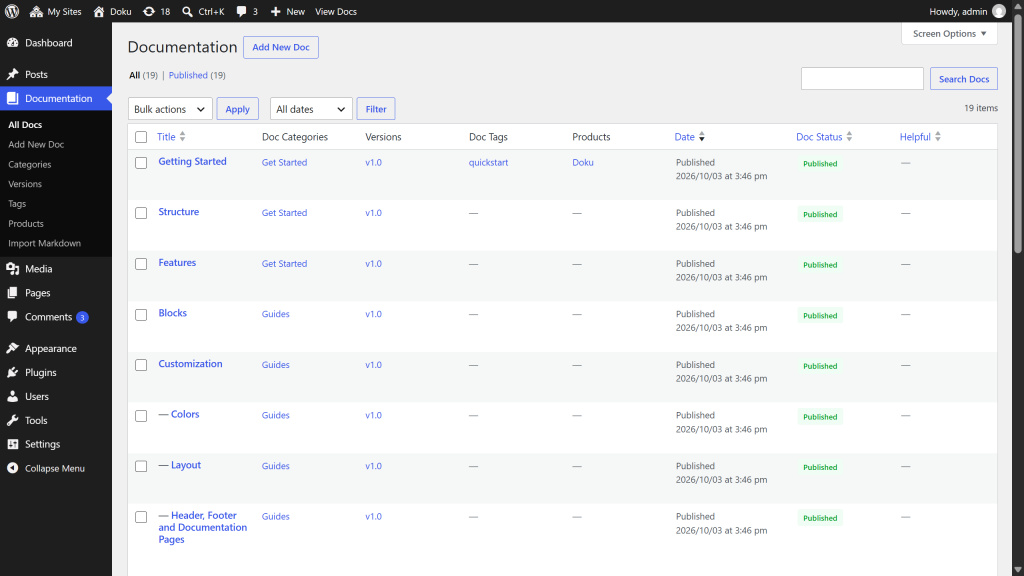
All documentation lives in the doc custom post type, accessible from the Documentation menu in the WordPress admin sidebar.
| Property | Value |
|---|---|
| URL pattern | /docs/{slug}/, or /docs/{parent-slug}/{slug}/ for a child doc. The category is not part of the address |
| Hierarchical | Yes — docs can have parent docs |
| REST API | Enabled (/wp-json/wp/v2/docs) |
| Supports | Title, editor, featured image, revisions, page attributes |
Parent / child docs
Setting a Parent in the page attributes panel creates a hierarchical doc tree. In the automatic sidebar, child docs appear nested under their parent as a collapsible section, and the breadcrumb runs through the parent. Give a child the same category as its parent: the sidebar nests a doc only under a parent in the same category group. This is useful for long topics split across multiple pages.
Ordering pages
Drag and drop docs in the Documentation list view (using a plugin like Simple Page Ordering) to set menu_order. The theme uses menu_order to sequence the Previous / Next navigation links at the bottom of each page.
Taxonomies
Doku registers four taxonomies, all visible in the Documentation admin menu.
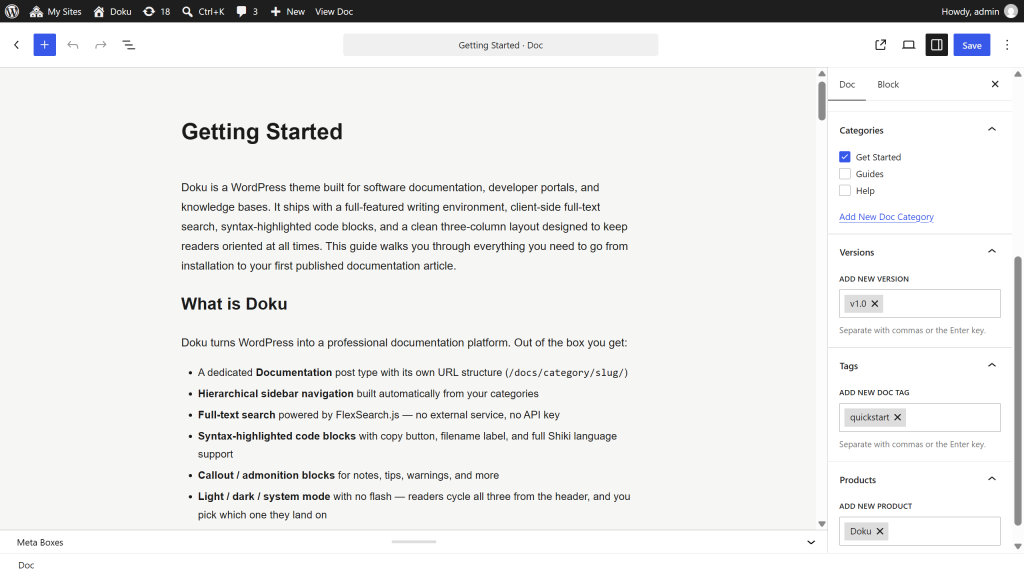
doc_category — Section grouping
The primary taxonomy. Each top-level category becomes a labeled group in the automatic sidebar. Categories can have sub-categories, but the sidebar does not nest them: a doc in a sub-category is listed in its top-level category’s group.
URL pattern: /doc-category/{slug}/
Create categories under Documentation > Categories. Assign them to docs in the editor sidebar panel.
The Markdown importer also creates them for you: each file’s folder becomes its category, matched by name against your existing terms and created only if nothing matches. Files sitting at the top level of a .zip get no category at all. A single .md upload has no folder, so it gets the category you choose in the import form’s Category field, or none.
The folder path is flattened into a single category name — hyphens and underscores become spaces and each word is capitalized, so api-reference/auth.md lands in Api Reference. Nesting does not produce a tree: guides/getting-started/intro.md lands in one category called Guides Getting Started, not Guides > Getting Started. To organize categories after importing, set each term’s Parent under Documentation > Categories. The automatic sidebar then lists a child category’s docs in the parent’s group; to nest pages inside a group, give them a parent doc instead (see Parent / child docs).
doc_version — Version switcher
A flat taxonomy for versioning your documentation. Each term appears as an entry in the version dropdown — in the site header on desktop, and in the navigation drawer on narrower screens.
URL pattern: /doc-version/{slug}/
Create versions under Documentation > Versions. Assign them to docs to tag which version(s) they apply to — in the editor’s Versions panel for one doc, or via Bulk Edit on the Documentation list for many at once. The Markdown importer can tag everything it imports with one of them — see Version under the importer. It never creates a version; make the term here first.
A version term is a label on a published doc, not a snapshot of it. Tagging a doc v2.0 does not freeze its content — editing that doc changes what v2.0 readers see. This is unrelated to WordPress revisions, which are the edit history of a single doc.
Because a term is just a label, one doc can carry several versions when a page applies unchanged across releases. If you need genuinely different content per release, duplicate the doc and tag each copy — the copies are independent docs from that point on.
doc_product — Multi-product sites
A flat taxonomy for sites that document multiple products. Use it to filter the search index by product, or to structure separate product sections.
URL pattern: /doc-product/{slug}/, a page listing the product’s docs like a category page, with the docs sidebar, breadcrumbs and your menu_order sequence.
Create products under Documentation > Products.
doc_tag — Free-form labels
A flat taxonomy for loose labels that don’t fit the category tree. Terms are created automatically when you import Markdown with a tags field in the front matter; you can also add them by hand.
URL pattern: /doc-tag/{slug}/, a page listing the tag’s docs like a category page.
A doc lists its tags at the end of the article, before the “Was this helpful?” rating, each linking to its tag’s page. Turn the list off with Show tags under Appearance > Customize > Doku Options > Documentation pages.
If the front matter marks one tag as primary, it is stored separately in the _doku_primary_tag post meta.
The documentation index
/docs/ is the documentation index: a card for each top-level category, sorted by name, under the heading “Documentation”. To open it with your own words instead, such as a welcome, a “Start here” set of links built with the Card Grid block, or a note on how the docs are organized, write them on an ordinary page and choose it as Documentation home page under Appearance > Customize > Doku Options > Documentation pages.
- The page’s title becomes the index’s heading, and its content appears above the category cards. The cards stay automatic, so leave them out of the page.
- You edit it like any page. On
/docs/the admin bar’s Edit Page opens it, and the Pages list labels it Documentation Home. - Doku’s own breadcrumbs name the index after the page as well, on
/docs/and in every trail leading back to it, so the crumb and the heading match. - The page’s own address forwards to
/docs/, so the same text is not published twice. Preview in the editor still shows the page itself. - Settings overridden in the page’s Doku Options box, such as Additional CSS, apply to
/docs/. See Per-entry overrides. - If the page is deleted, unpublished or password-protected,
/docs/goes back to the plain heading rather than showing nothing.
Browsing from a listing page
The docs index and every category, version, product and tag page list docs as cards. Their right-hand column, where a doc shows its table of contents, lists the taxonomies instead, so a reader can move from one listing to the next. Search results and the “page not found” page show the same column, unless you give it to widgets (see Layout):
- Categories — your top-level categories, each with its number of docs, sub-categories included.
- Versions — newest first, once you have at least two.
- Tags — every tag in use, as chips.
- Products — once you have at least two.
A section with nothing to show is left out, and the page being viewed is highlighted in its section. The documentation index leaves Categories out, since its cards already list them. Nothing needs setting up: the column fills itself from the terms your published docs use. On screens below 901px it opens as a panel from a button at the right end of the header, the same way the table of contents does on a doc.
Pages, Posts, and the Front Page
Documentation lives in the doc post type, but a real site usually needs a few ordinary pages too — an about page, a contact form — and often a blog. Doku gives posts and pages the same frame as documentation, so the header and the two side columns line up on every page:
- Posts read like documentation. Under the title sits the post’s excerpt, when you have written one (Add an excerpt in the post’s settings in the editor), then the date and the author, and once a post has comments, a link that jumps down to them (“2 comments”). The excerpt is the summary the blog list shows too, so write it to stand on its own rather than repeat your opening paragraph; WordPress’s automatic excerpt is never shown here. The left column lists your blog by category: one group per top-level category, holding its five newest posts (a sub-category’s posts are listed with its parent), and an All posts in … link when the category holds more. It builds itself, with no menu to maintain, and the post being read is always listed and marked, even when it is older than the newest five. The right column shows the post’s table of contents, or your Blog Sidebar widgets when the post has no headings. The blog listing and its category, tag, author and date archives have the same left column, with the widgets on the right.
- Pages have a widget column on each side, with widget areas of their own: Page Left Column and Page Right Column, so nothing you add for the blog appears on a page. A column with no widgets in it is left out, so until you add some a page spans the whole frame, which suits a landing page; add widgets and the article gives up the room the column needs. To keep a column off every page, or off one page, switch it off under Doku Options > Layout or in that page’s Doku Options box. Turn on the table of contents for pages and it opens the right column on any page with headings, in place of the widgets.
- Search results and the “page not found” page are laid out like a documentation listing page: the documentation sidebar on the left, so a reader who found nothing has somewhere to go, and on the right your Blog Sidebar widgets, or the browse column when there are none.
Every one of these settings can also be changed for a single post or page in the Doku Options box in the editor. For example, you can turn the table of contents on for one long policy page; see Per-entry overrides.
Comments are supported on pages and posts. Documentation pages do not use comments — the “Was this helpful?” rating covers feedback there.
Blog listings. Assign a page as your posts page under Settings > Reading and Doku renders it — along with every category, tag, author and date archive — as a list of articles: featured image, category, title, date, author and excerpt, newest first. Documentation archives keep their card grid, so a blog section never reads as a docs index. A post without a written excerpt shows the first few lines of its text there instead, so write one for any post whose opening paragraph does not summarize it. The category shown is a post’s first by name, leaving out Uncategorized. To feature a post, tick Sticky in the post’s settings in the editor: sticky posts open the first page of the posts page at full width, with their image across the column, each marked Featured. Below them a row of category chips, All and then each top-level category, links each category’s archive, where the chips appear again with that category marked; the row is left out while posts use fewer than two categories. The posts page’s title heads the list, and whatever you write in the page itself, such as a line on what the blog covers, sits between the title and the first post, on the first page of the list only. WordPress still warns in the editor that you are editing the page that shows your latest posts; with Doku the content shows all the same.
Search results use that same list, paginated the same way. A site-wide search returns posts, documentation and pages together, so each row is labeled with what it is — Blog, Documentation or Page — and only a blog post shows a date and an author; a documentation result shows its category instead. The search form sits under the heading on every results page, so a query can be refined without going back to the header.
Front page behavior: with Settings > Reading set to Your latest posts, visiting the site root, or a later page of it such as /page/2/, redirects to the documentation archive at /docs/. Set a static page as your front page and that page is shown instead — the redirect steps aside automatically. Both places you make this choice say so: the Homepage with Doku row at the foot of Settings > Reading, and the description of Appearance > Customize > Homepage Settings. Developers can disable the redirect entirely, which also removes both notes:
add_filter( 'doku_redirect_home_to_docs', '__return_false' );Sidebar Navigation
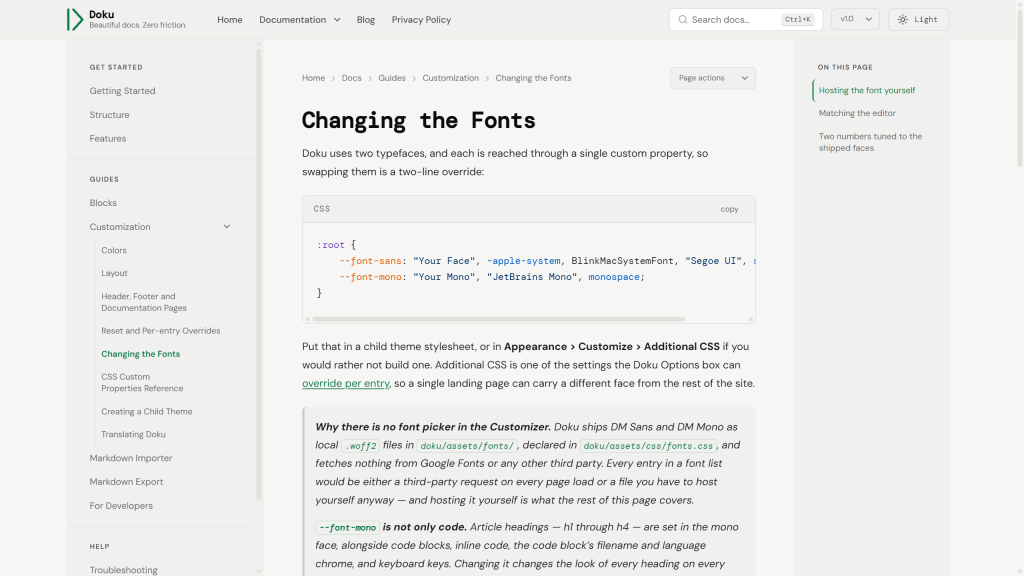
The left sidebar is built automatically from your categories — no menu setup required. Each top-level doc_category becomes a labeled group, in alphabetical order, with its docs listed beneath it by their Order, and the current page is highlighted. Once any category exists, a doc with no category is left out of the tree, so give every doc one. To set the order of the groups yourself, build a Docs Sidebar menu as described below. A doc with a Parent in the same category is nested under it, in a collapsible section that works like the ones described below.
To override with a custom menu:
- Go to Appearance > Menus.
- Create or edit a menu.
- Assign it to the Docs Sidebar location.
When a “Docs Sidebar” menu is assigned, it takes precedence over the auto-generated tree.
Section headings. To group links under a heading — the way the automatic tree groups them by category — add a Custom Links item at the top level of the menu, set its URL to #, and use the heading text as its link text. Nest that group’s links underneath it. The heading renders as a small uppercase label above its group, separated from whatever precedes it by a rule.
A heading is a label rather than a link: it is not clickable, carries no expand arrow, and its group is always visible. Only top-level items behave this way — a # item nested deeper stays the label of a collapsible branch. Top-level items with a real URL are still rendered as ordinary links, so one menu can mix headings and plain links.
Collapsible sections. Below any section heading, a menu assigned to the Docs Sidebar renders nested items as collapsible sections with an expand arrow. On every page, the section containing the current page is expanded and the rest start collapsed — so a reader always sees where they are, and the same URL always looks the same. Sections a reader opens by hand stay open while they are on that page.
Note: In the automatic category tree, the collapsible sections are parent docs — see Parent / child docs. Its category groups are always visible, like section headings.
On narrow screens. Below 1101px the sidebar becomes a drawer opened by the ☰ button in the header. Because the header’s own menu is hidden at that width, your Primary Navigation menu is repeated at the top of the drawer, above the documentation tree and separated by a rule — so top-level links stay reachable on phones and tablets. The drawer is available on every template, and below the primary menu it holds whatever that page’s left column holds: the documentation tree on docs, search results and the 404 page, the blog’s category list on posts and blog listings, and the Page Left Column widgets on a page that has them. A page without a left column shows the documentation tree there.
Header Navigation
The links in the site header come from a menu assigned to the Primary Navigation location:
- Go to Appearance > Menus.
- Create or edit a menu.
- Assign it to the Primary Navigation location.
Dropdown menus. Three levels are supported. Drag an item slightly to the right in Appearance > Menus to nest it under the item above. A top-level parent drops a panel below the header bar; a parent inside that panel opens a second panel beside it, flipping to the other side if it would otherwise run off the edge of the screen.
Every parent carries a chevron button next to its label, and there are three ways to open its panel:
- Hover, on a device with a mouse or trackpad.
- Click or tap the chevron. The panel stays open until you click the chevron again, click anywhere outside the menu, or press
Escape. This is what makes the menu usable on a touchscreen laptop or a tablet in landscape, where there is nothing to hover. - Keyboard. Tab to the chevron and press
EnterorSpace; the panel opens and the nextTabmoves into it.Escapecloses it, and so does tabbing past the end of the menu, so an open panel never sits over the page you tabbed into.
The arrow points at where the panel will appear — down for a top-level item, right for one inside a panel — and points back at its item once the panel is open. Clicking the parent’s label always follows its link; only the chevron opens the panel.
A fourth level will be silently dropped, which is deliberate: deeper hierarchies belong in the documentation sidebar, which nests as deep as you need. With JavaScript unavailable, panels still open on hover and on keyboard focus.
The mega menu
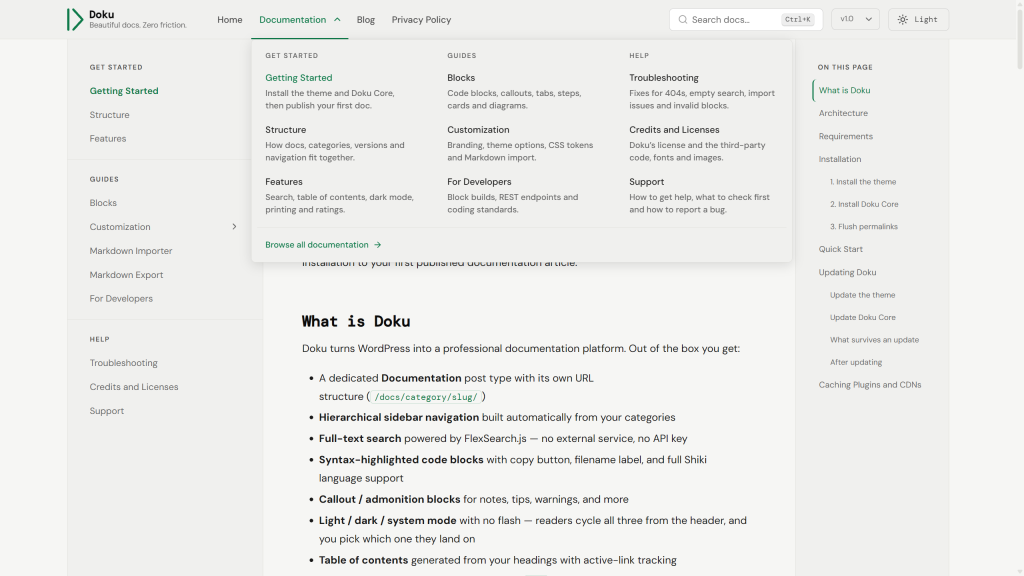
A top-level item whose children have children of their own opens as a columned panel instead of a nested dropdown: each second-level item becomes a column heading, and its own children become the links under it. Nothing marks a branch as a mega menu — the structure of the menu is what decides, so a branch only two levels deep keeps the narrow dropdown described above, and the two can sit side by side in the same menu. Any one branch can be told to do otherwise; see Choosing the style for one branch below.
To build one:
- Add the top-level item — the one that opens the panel.
- Nest an item under it for each column, and name it as a heading (“Get started”, “Customizing”).
- Nest the links under those.
Up to four columns sit side by side; a fifth wraps onto a second row.
A column heading that should not be clickable. Add it as a Custom Link with the URL #. Doku renders any menu item pointing at # as plain text rather than a link — it is skipped when tabbing through the menu, and in the navigation drawer the chevron beside it is what opens the branch. Give the heading a real URL instead and it stays a link, in both the panel and the drawer. That rule covers the Primary Navigation menu; in the Docs Sidebar menu a top-level # item becomes a section heading instead — see Sidebar Navigation.
Choosing the style for one branch. Every top-level menu item has its own Menu style setting in Appearance > Menus — click the item open and it sits under the Description field. It appears on top-level items only, because it decides how that item’s whole panel opens:
| Menu style | A branch three levels deep | A branch two levels deep |
|---|---|---|
| Automatic | Columned panel | Plain dropdown |
| Mega panel | Columned panel | One column of two-line rows |
| Standard dropdown | Nested dropdowns | Plain dropdown |
Automatic is the default and is what the section above describes. Standard dropdown is how you keep one branch as ordinary nested dropdowns while the rest of the menu opens as panels — useful for an “About” branch that happens to nest three deep without wanting the width.
Mega panel on a branch only two levels deep is the one case that has no automatic equivalent: its links become a single column of rows, so they can carry the descriptions covered next. That panel has no column headings and no footer link — both of those roles only exist once a second-level item has children of its own — so every link under it is simply a row.
A second line under each link. Open Screen Options at the top right of Appearance > Menus, tick Description, and a Description field appears on every menu item. Whatever you type there renders as a muted second line under the link’s title inside a mega panel — including a two-level branch set to Mega panel, which is how a short menu gets descriptions without inventing a level of headings it does not need. Descriptions are ignored everywhere else — in a plain dropdown and in the drawer, where a second line would push the menu past the width it has.
A “Browse all…” link across the foot of the panel. Add a second-level item with no children of its own. It is drawn full width under a separating rule, below the columns, wherever it happens to sit in the menu order.
Turning it off. Appearance > Customize > Doku Options > Header > Columned mega menu is on by default. Switch it off and every three-level branch goes back to a dropdown with a flyout panel beside it. It is the default for items left on Automatic only — an item given an explicit Menu style ignores it, in both directions, so you can switch panels off site-wide and still keep one. Menus only two levels deep are unaffected either way, and the #-is-a-heading rule applies whichever setting you use.
On narrow screens. The header menu is hidden below 1101px and repeated inside the navigation drawer, to the same three levels. There is no room for a flyout panel at those widths, so a parent there is a collapsible section instead, exactly like the documentation tree below it: tap the chevron to expand or collapse it, tap the item itself to follow the link. Your expansions last for the page you make them on, and every visit to the same page shows the same tree. If JavaScript is unavailable every section renders expanded, so no link is ever out of reach.
Breadcrumbs
Breadcrumbs appear above the title of every doc page, every blog post and the blog’s listings: the posts page and its category, tag, author and date archives. Search results, the 404 page and ordinary pages have none. The theme checks for active SEO plugins in this order:
- Yoast SEO — uses
yoast_breadcrumb()if available. - Rank Math — uses
rank_math_the_breadcrumbs()if available. - Built-in fallback — generates breadcrumbs from post hierarchy and primary
doc_category: Home, then the documentation index, then the category and any parent docs. The index’s crumb reads Docs, or the title of your documentation home page when you have chosen one. A blog post’s trail runs Home, then your posts page, then the post’s category and any parent categories. A post in several categories takes the first by name, and the default category (Uncategorized, unless you renamed it) is left out. When the front page shows your latest posts there is no posts page, so the trail goes straight from Home to the category.
No configuration needed. If you use Yoast or Rank Math, enable breadcrumbs in the plugin settings and Doku will use them automatically.
Previous / Next Links
Each doc page shows navigation to the previous and next page within the same doc_category, ordered by menu_order. Use a drag-and-drop ordering plugin on the Documentation list view to control the sequence.
The two links share the row evenly, half each, and each keeps its side whether or not the other is there — so the first page’s Next sits where every other page puts it. Below 480px they stack.
Blog posts carry the same pair, ordered by publication date instead of menu_order. The Show previous / next links setting covers documentation only; a post always shows its own.
Version Dropdown
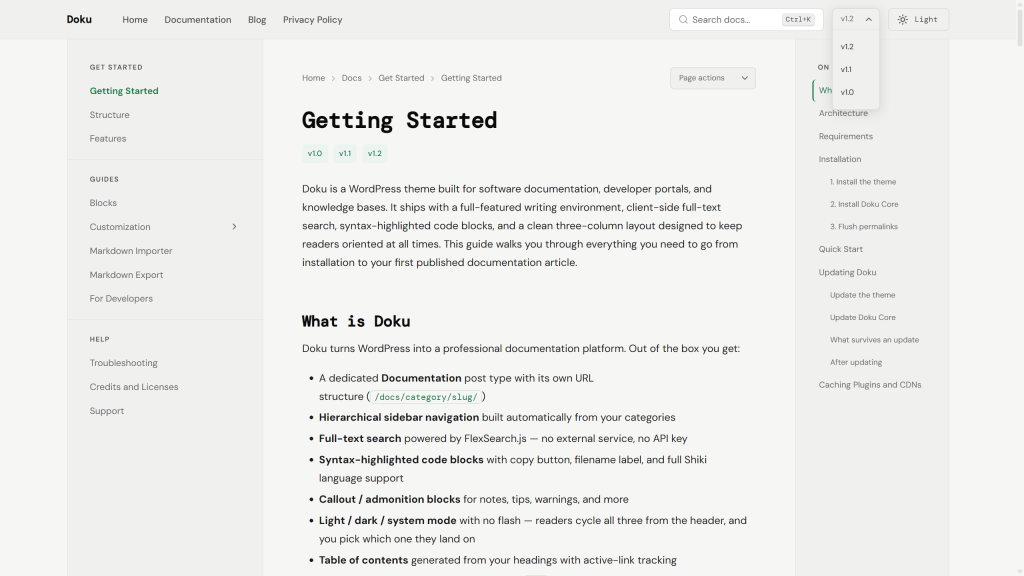
The header includes a dropdown listing all doc_version terms, newest first. Ordering is natural rather than alphabetical, so v10.0 sorts above v9.0; names that aren’t version numbers (Beta, Legacy) fall back to alphabetical order.
The button shows the version you are currently viewing, or the newest one elsewhere on the site, and carries the same expand arrow as the header menu. Opening it reveals the full list, with the current version marked in your accent color. It closes on Escape or on a click outside, and opening one copy closes the other.
Button and list are one box: opening the control grows it downward, with the list attached directly beneath the button under a single border and shadow. The button and the rows share a text position and size, so the version you are looking at stays exactly where it was when the list opens — it behaves like an ordinary select rather than a card appearing under a chip.
The button sizes itself to the version name, up to a maximum of 160px, in the header and in the drawer alike. Opening it never changes that width, so the search field and theme toggle beside it do not move. A name longer than the maximum is shortened with an ellipsis on the button and shown in full in the list. If your version names are long words rather than numbers (Enterprise, Legacy 2024) and you would rather they fit, raise the maximum in Appearance > Customize > Additional CSS:
:root { --width-version-max: 220px; }Raise it with some care: the extra width comes out of the search field beside it. The drawer copy honors the same maximum.
Because the entries are ordinary links rather than form options, they work the way links do: middle-click or Ctrl/⌘-click opens a version in a new tab, and the control still opens and navigates with JavaScript disabled.
Selecting a version navigates to that version’s archive — an index of every doc tagged with it, laid out like a category page with the docs sidebar, breadcrumbs and your menu_order sequence. It does not jump to the same page in another version: terms label docs independently, and nothing pairs a page with its counterpart in another release.
Below 1101px the header dropdown is hidden along with the rest of the header navigation, so a second copy appears in the drawer’s top row, opposite the × close button — the same top corner it occupies in the header. Readers on phones and tablets reach it through the ☰ button. It behaves the same way there as in the header: the list opens over the documentation tree instead of pushing it down, so nothing moves under the reader’s finger. A long list of versions scrolls within the panel rather than running past the bottom of the drawer.